

/dashboard/settings/calendar always opens Calendar. Older links still work and land in the right place.
Text fields save with the Save changes button on their card, and Bloom asks before you leave a section with unsaved text. Switches and choices save the moment you change them.
Profile
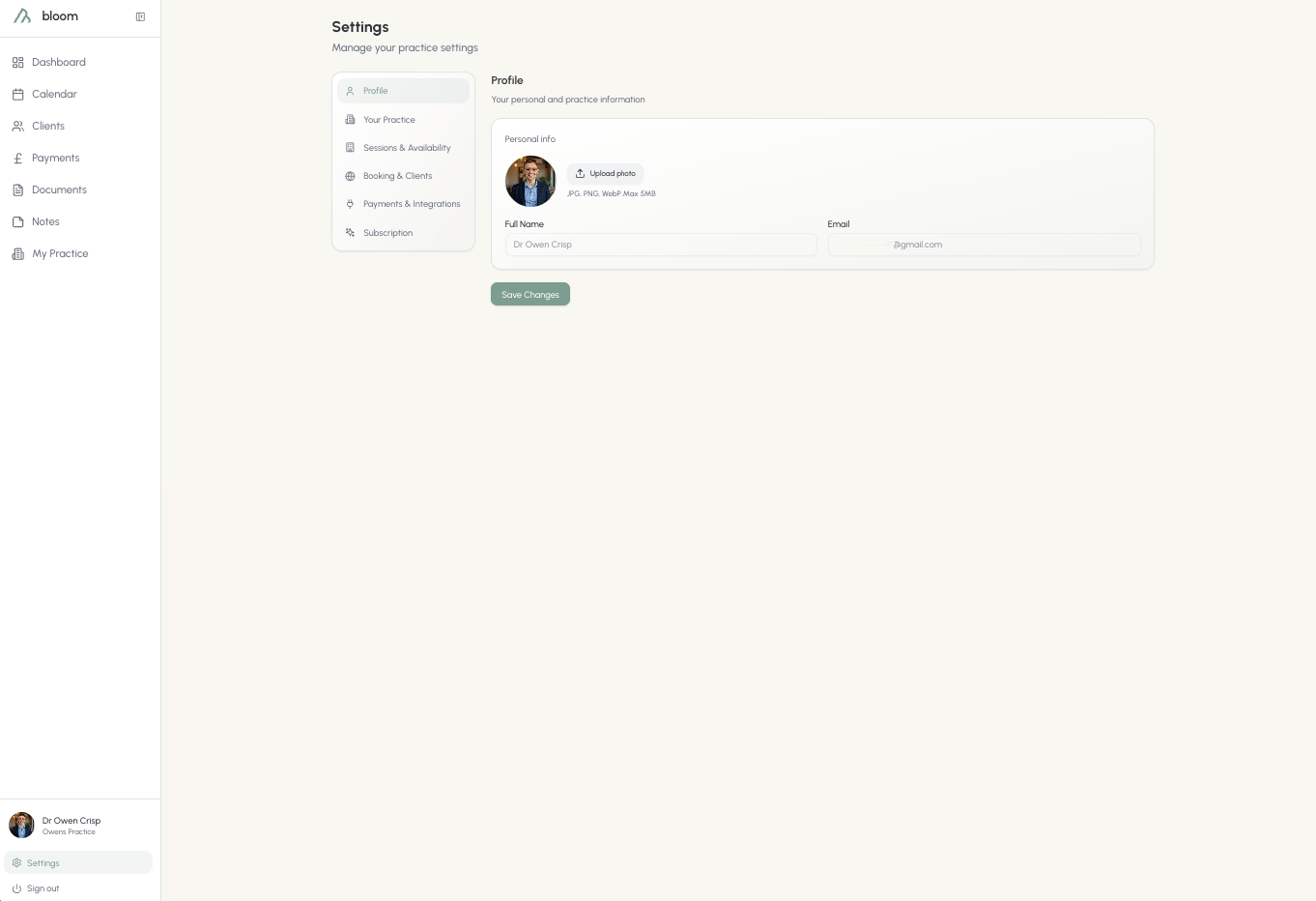
Who am I. Your photo, sign-in details and account security.Your details
Full name and email address are locked in this section. If you require these to be changed, please reach out to us directly, and we’ll be happy to help.
Security
The profile tab is also where you can add a second step to sign-in, keeping your account protected even if your password leaks. Bloom works with any standard authenticator app, including Google Authenticator, 1Password, and Apple Passwords.Two-factor authentication
The full guide: turning it on, backup codes, signing in, and what to do if you lose your device.
Practice
Who are we. Your practice details, your team and the shared booking page.Details
In Practice you’ll find everything you need to really customise your Bloom experience and build out your online profile with us. This section is where you’ll add important information such as:- Practice name
- Practice logo
- Practice address
- Your contact phone number
- Your website URL
Team
If you’re a practice of multiple therapists, here is where you’ll invite your colleagues. Seats can be purchased at an additional cost of £29 a month, or £290 a year if your practice is on the yearly plan. To invite a colleague, click Invite and you’ll be given the chance to add someone via their email address.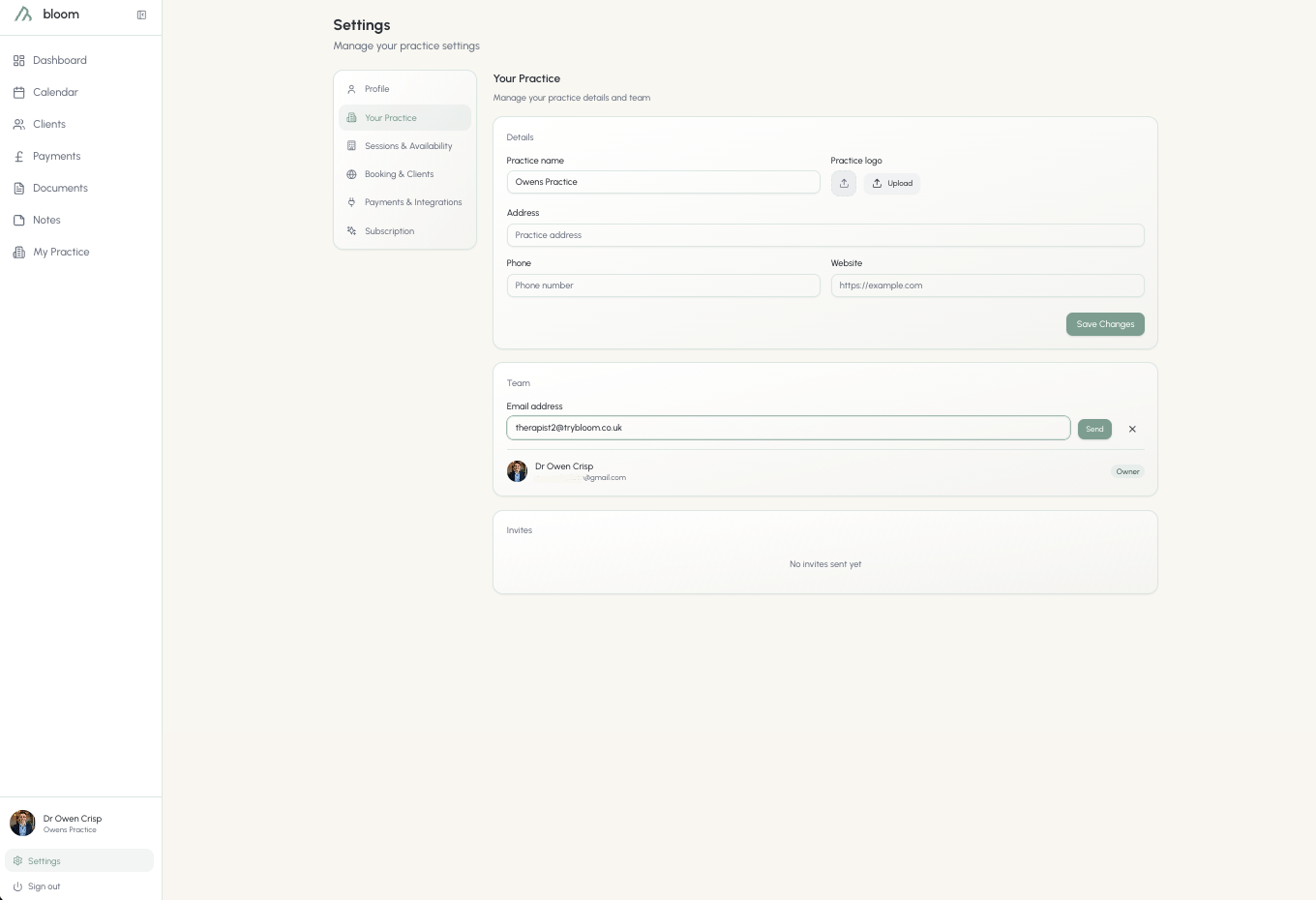
Practice booking page
Practices with more than one therapist get a single booking link where clients choose who to see. Everyone in the practice can see and copy it from the Practice booking link card. The owner uses the pencil icon to change the link and choose which therapists are shown.Practice booking link
Setting the link, choosing who appears, and what clients see.
Calendar
When and how I see clients. Your working hours, what a session is, and where your diary shows up.Availability
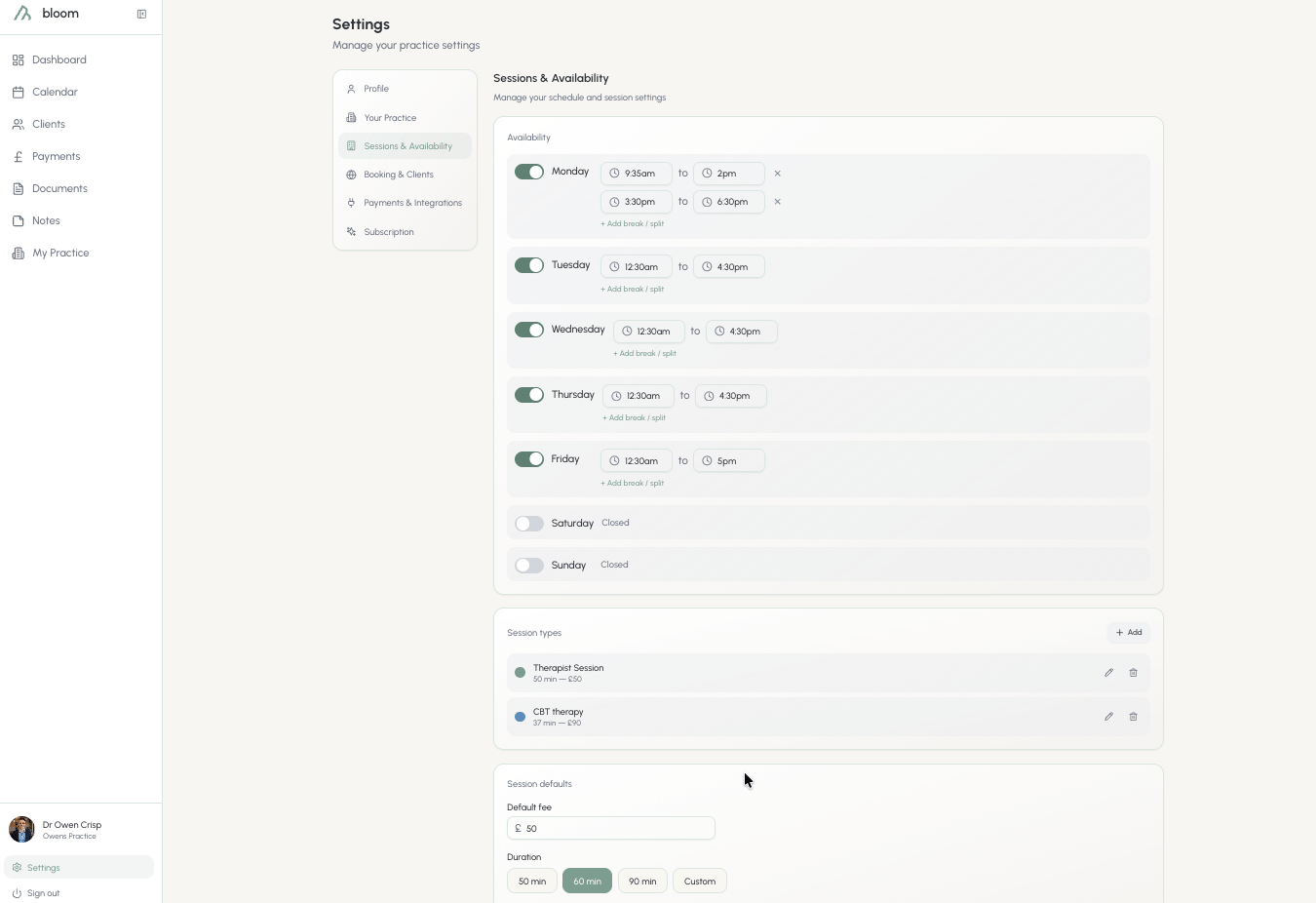
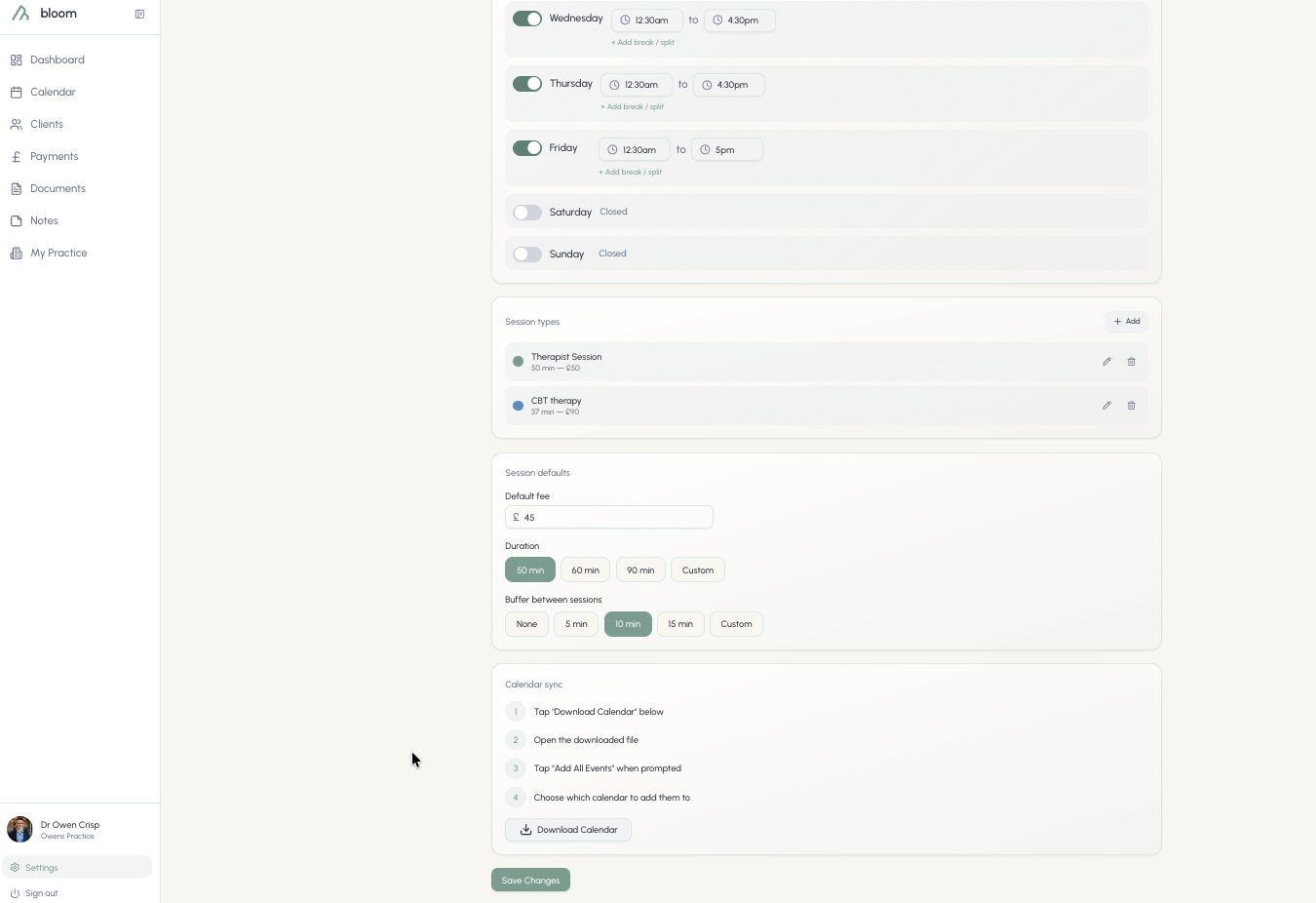
When onboarding, you’re given the chance to set your working hours before finalising. These can be easily customised; giving you the option to change your working hours should your days alter. Need to pick up the kids from school or lock in your pilates session? Drop in a break and split your working hours to block that time out on your calendar.Think of working hours like the time sheet on your office door.
Session types
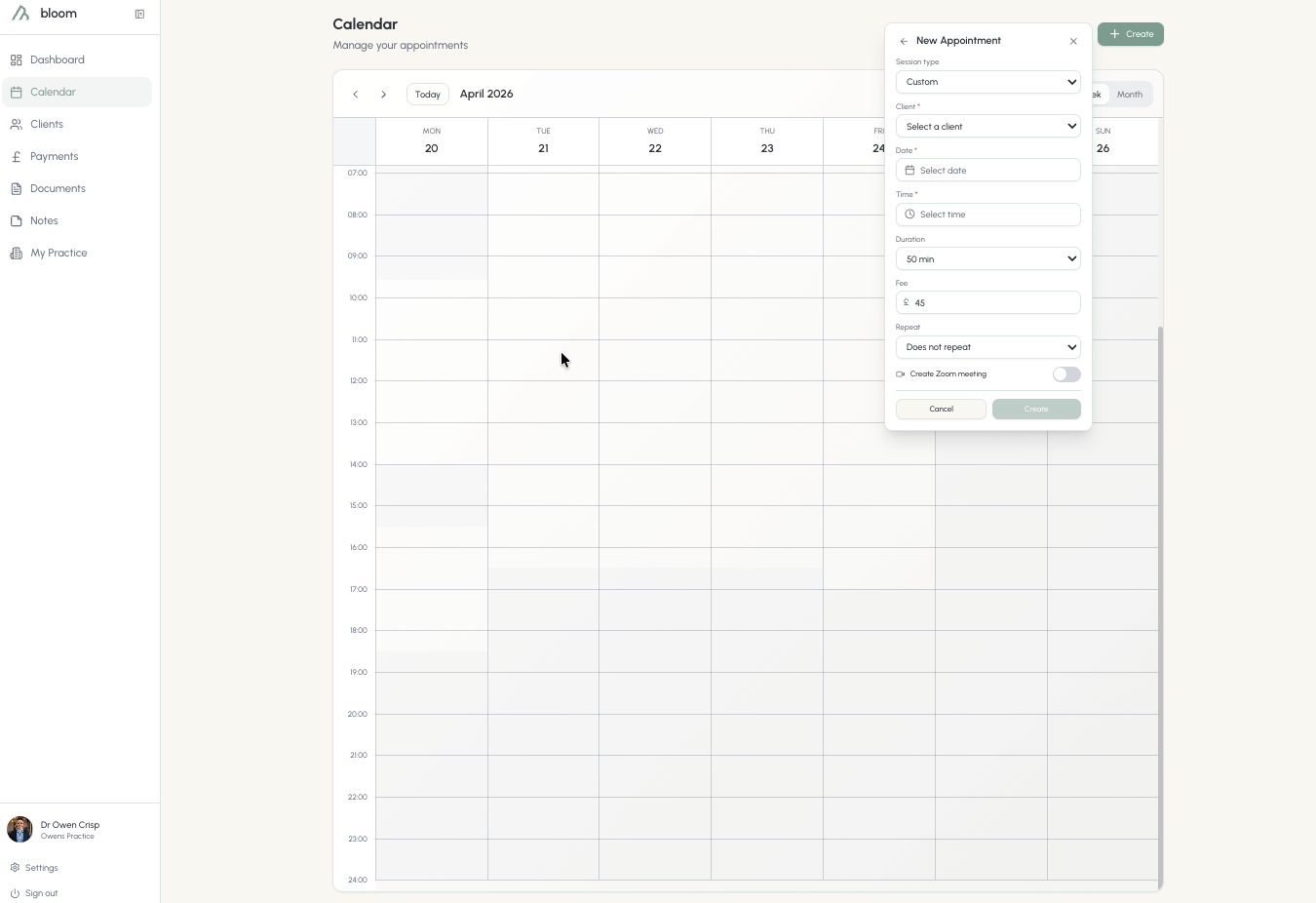
Adding a session type gives you the option to use those as a default when scheduling sessions. If you’re set on what length of session and what fee you charge, this is a good way to cut time when planning out your week. Switch on Bookable online when editing a session type to offer it on your booking link; a globe next to its name shows it is on. Clients then choose it, and the request arrives with that type’s length and fee already set. See Online booking.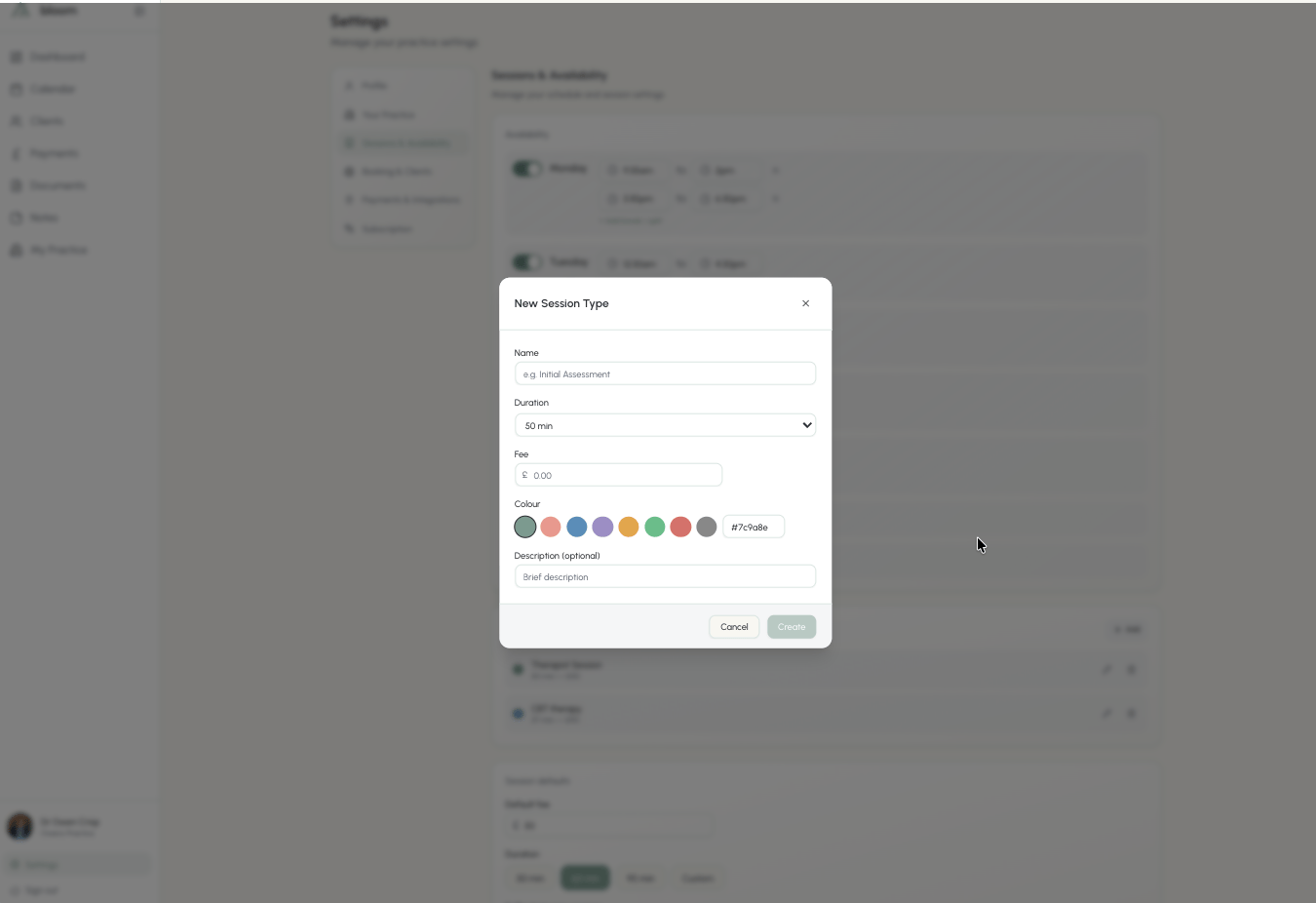
- Name - what you want the session to be called
- Duration - how long you’d like the session to be (remember, this will also include your buffer time when using this session on the calendar)
- Fee - what the default fee is for this type of session
- Colour - make the session type easily identifiable. We provide a default list of colours, if you’d like to choose your own, we suggest using a colour picker such as w3schools.com/colors/colors_picker.asp
- Description - any further information you’d like on that session
Calendar sync
Calendar sync puts your Bloom diary on your phone and computer. Updates flow one way, from Bloom out to your calendar. Google Calendar can also provide busy times for optional clash warnings when you create an appointment. The Calendar sync card under Calendar offers two ways to do this, and you can use both at once:- Google Calendar connects directly, so a booking you accept shows up on your phone within seconds.
- Apple, Outlook or another app gives you a private subscription link. Apps refresh subscribed links on their own schedule, usually every few hours.
Apple, Outlook or another app
Select Open in Apple Calendar to add your diary to Calendar on a Mac or iPhone in one step. For Outlook or any other app, select Copy link and paste it wherever the app asks for a calendar URL. Expand Using Outlook or another app? for step-by-step instructions and the link itself. Google Calendar can subscribe to the link too, but it refreshes slowly, often only once a day. For Google, connect it directly instead.Google Calendar
Connecting Google directly means a booking you accept shows up on your phone within seconds. When you connect, Bloom creates a new calendar called Bloom in your Google account and keeps it up to date. Bloom only changes its own calendar. With your permission, it also checks availability in the calendars you have selected in Google. It does not read event names or details. To connect:1
Select Connect Google Calendar
You are taken to Google to choose your account and approve access.
2
Approve the Bloom calendar
Google asks you to let Bloom create and manage its own calendar. You can also approve access to your calendar list and availability to enable clash warnings. Event names and details stay private.
3
You are brought back to Bloom
The card shows Google connected, and your existing sessions and blocked time start appearing in the Bloom calendar in Google.
Google Calendar clash warnings
If you already connected Google Calendar, select Enable clash warnings in Settings > Calendar > Calendar sync. Choose the same Google account and approve the additional permissions. Your Bloom calendar and existing sync stay in place. If you cancel, your current sync keeps working. Once enabled, Bloom checks busy times before saving a new appointment, including every date in a repeat series. It checks calendars selected in Google Calendar and excludes the calendar Bloom created. Calendars you have deselected in Google are not checked. If a time overlaps, you can Change time or Create anyway. If Google cannot be checked, Bloom tells you and lets you continue. The warning shows busy times, not event names. Google events marked as free do not produce a warning. These warnings apply when you create appointments in Bloom. They do not change public booking availability or check appointments you move or resize. Existing clashes with Bloom appointments, buffers and blocked time still prevent saving.If you edit or delete a Bloom event in Google
Nothing in Bloom changes. Bloom does not import changes to its synced events, so an edit or deletion you make there stays there. The next time that session or blocked time changes in Bloom, Bloom will overwrite the event to match, or recreate it if you deleted it.If the Bloom calendar goes missing or Google disconnects
If you delete the Bloom calendar in Google, or remove Bloom from your Google account permissions, the card shows Needs attention and a notice with what to do next - Recreate calendar or Reconnect. Nothing in Bloom itself changes in the meantime.Disconnecting
Select Disconnect to stop updating Google Calendar. You choose whether to also remove the Bloom calendar from Google. Either way, nothing in Bloom changes - your sessions, clients, and notes are untouched.Video calls
Bloom video calls are built in and always available. Connect Zoom here and a video appointment can create the Zoom meeting for you; Disconnect stops that without touching anything already in your diary.Zoom
Connecting Zoom and joining calls from the calendar.
Online booking
What clients can do on your booking page.Your booking link
Your booking link is the page where clients request a session with you. What they can book there is up to you: every session type has a Bookable online switch when you edit it under Calendar, and new accounts start with a free 15 minute Introductory consultation already switched on.
Online booking
Choosing what clients can book, what they see, and accepting requests.
What clients can book
A read-only list of the session types clients can request, straight from your Calendar settings. Select Manage session types to change it.Payment options
For practices taking card payments: choose what happens with money when a client books a paid session online. Require a card to book a session confirms the booking once a card is saved, with nothing charged until your usual collection time. Charge the full fee at booking takes the whole fee on Stripe as they book. Pick one or neither; a switch stays disabled, with a link to what to do first, until its prerequisites are met. See Online booking.Cancellation policy
Cancellations happen, and we understand that. But when a cancellation occurs, you can still choose to enforce a minimum time period before charging a fee. For clients who pay by card, the fee is collected automatically on a late cancellation - and pre-paid sessions refund themselves by the same rules. See Card payments. Changes here save as you make them.Payments
How you get paid.How you get paid
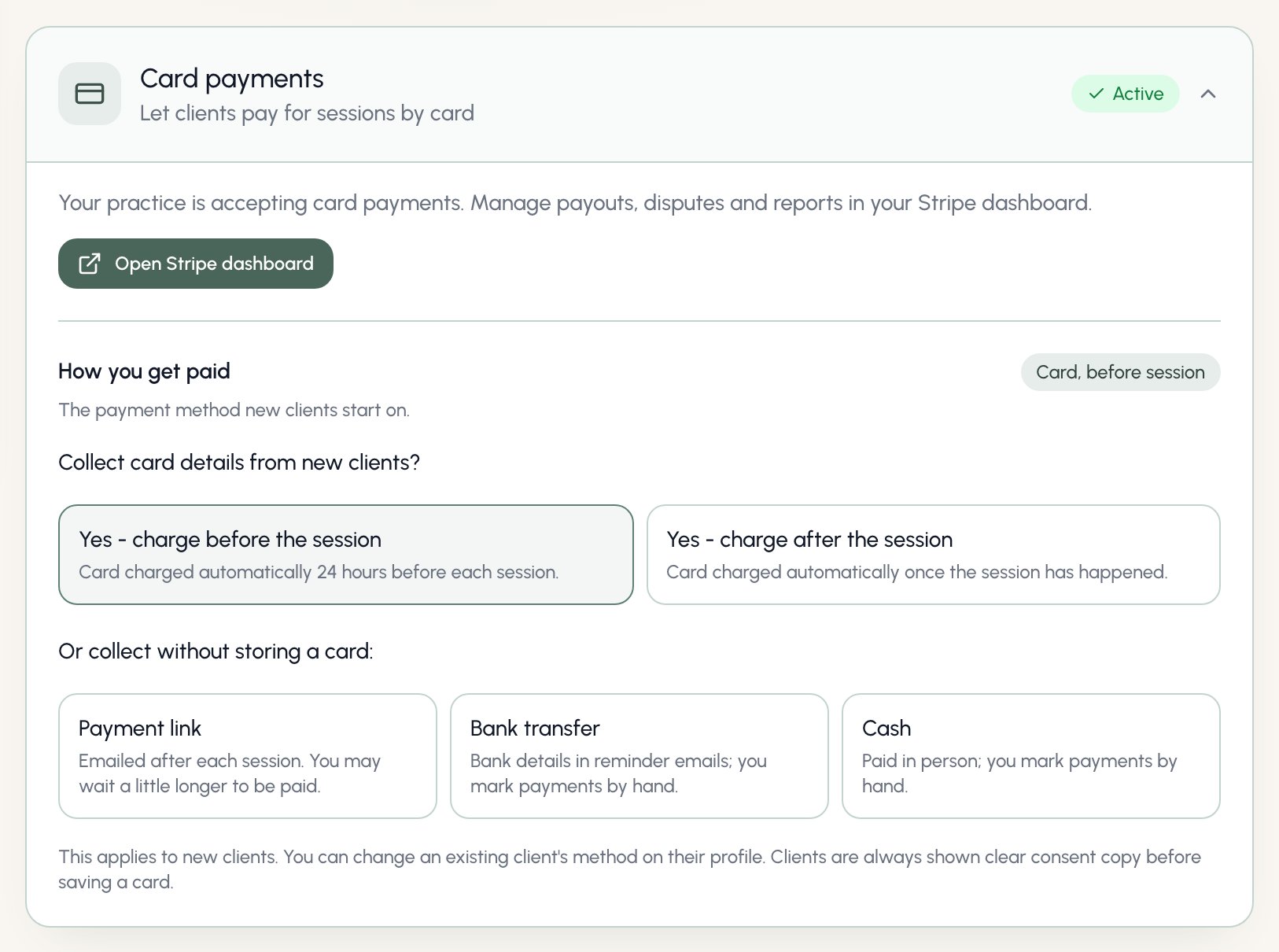
One card covers where clients pay and which method new clients start on. Methods are in two groups: Collected by hand (bank transfer, cash) and Collected through Stripe (card charged before the session, card charged after, payment link). Pick one and it saves straight away. It’s a default, not a switch: changing it never affects existing clients, whose methods you manage on their profiles.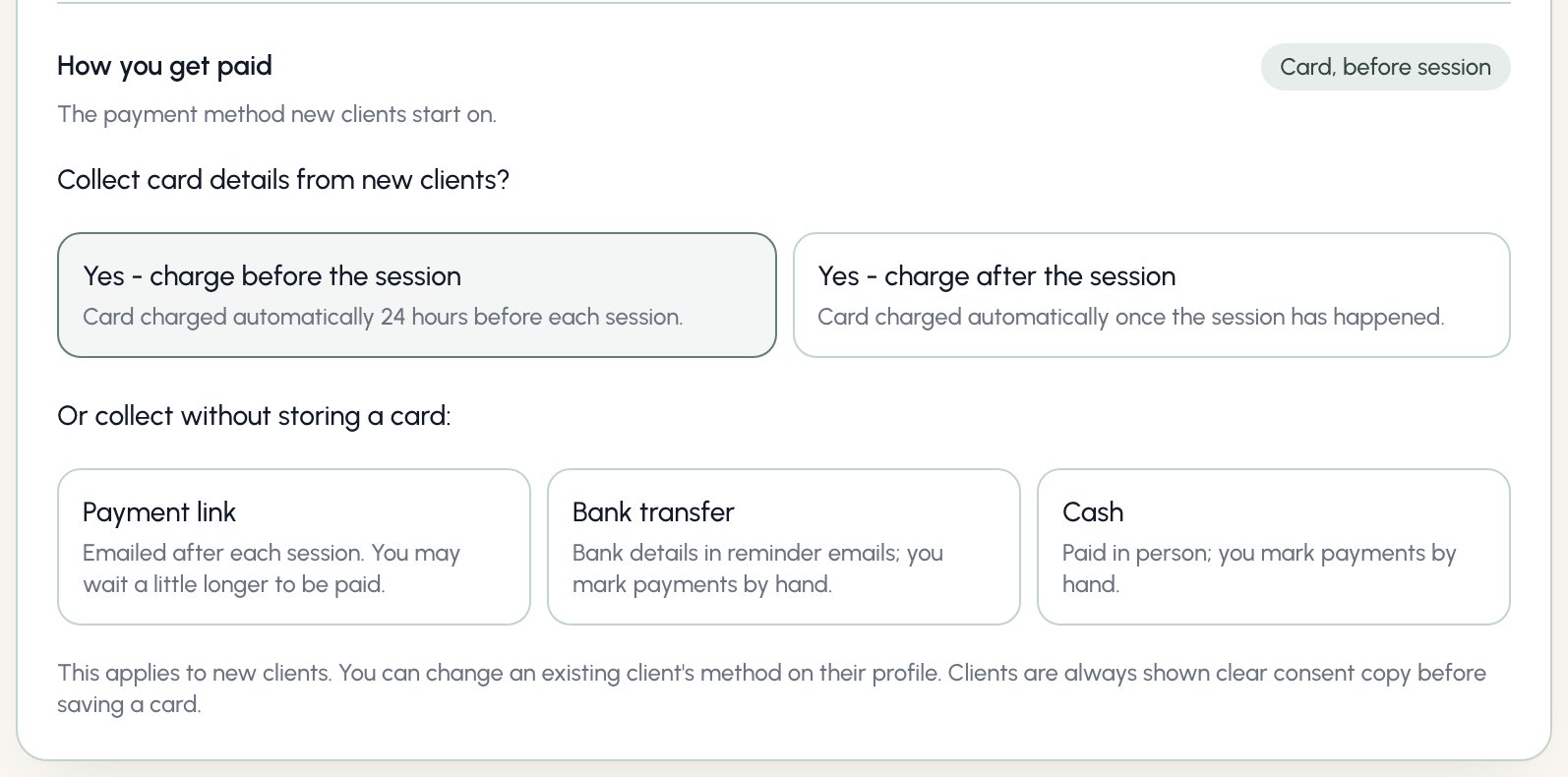
Bank details
Adding your bank details allows you to generate invoices that can be sent to the clients for manual payments. Invoices for payments are automatically sent to clients to prompt to pay for their sessions using these details.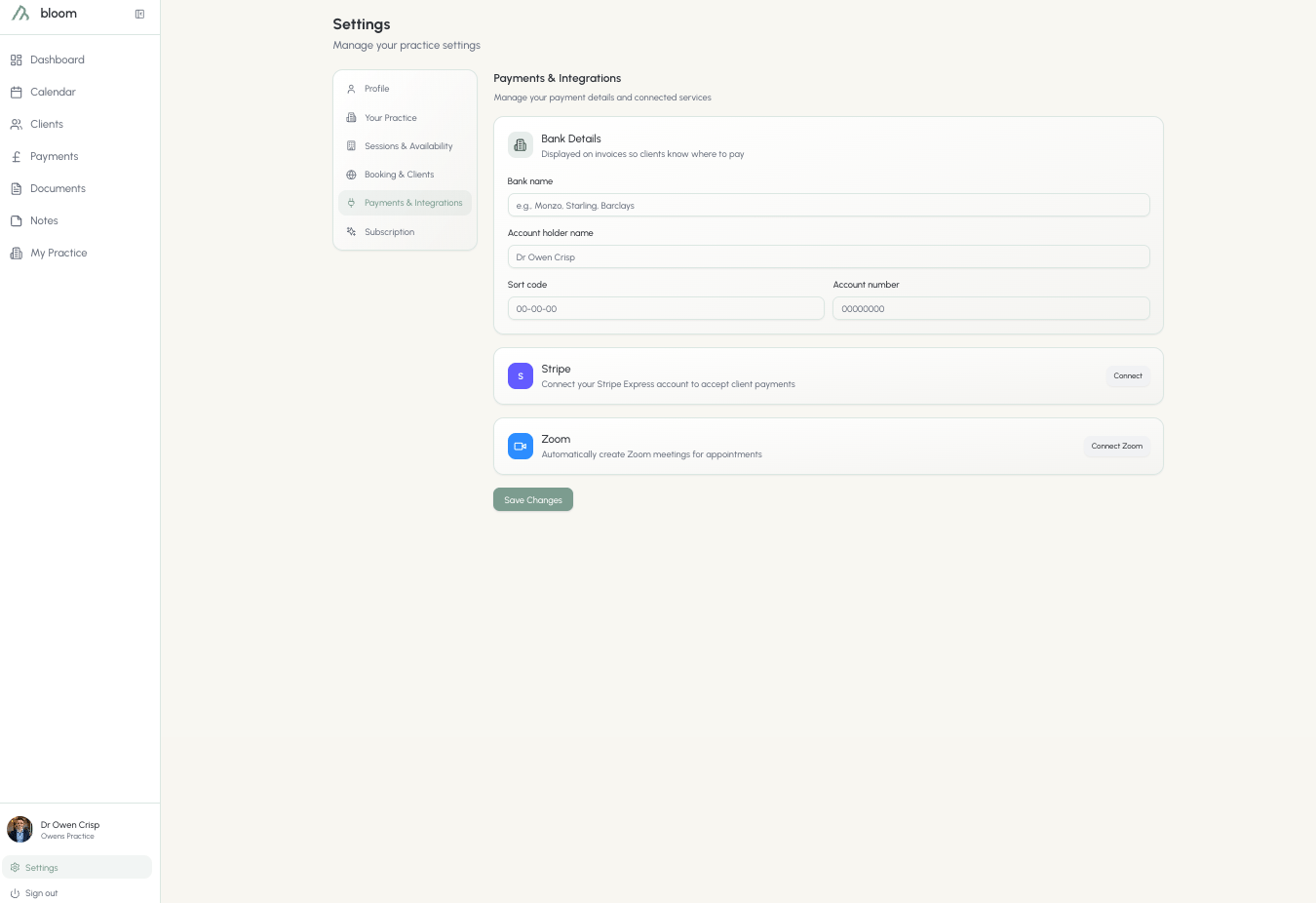
Emails
What gets sent: the notifications you receive, and the templates your clients receive.Notifications you receive
Email notifications controls the emails Bloom sends to you: when a client books, cancels, replies to a suggested time, or completes a form. Turn it off if you would rather check the dashboard activity feed instead.This switch only affects emails to you. Your clients still receive their session reminders, 24 hours and 1 hour before, whatever you choose here.
Templates clients receive
You can customise the wording of all 24 regular client emails. They are grouped by when clients receive them:
Select Edit beside an email and change its Email body. You can edit the whole message, including its greeting, paragraphs and closing. The Email preview shows the full email with example client details, including its subject, branding, buttons and footer. It updates as you type. Scroll within the preview to see the whole email; its links are inactive and nothing is sent.
Use the placeholders shown below the editor to include details such as the client’s first name. Bloom fills these in when it sends the email.
The placeholders under Required details and buttons add generated content such as session details or a payment button. You can move them within the message, but keep each one once, on its own line. Bloom keeps dates, amounts, payment status, links and attachments accurate automatically.
Select Save changes to use your wording for future emails. A Customised badge identifies saved changes. To replace the whole message with Bloom’s wording, select Restore default. The editor and preview both return to the complete default, including the greeting and closing. Select Save changes to keep the restored version. Your existing customised emails are preserved until you save a change.
Practice branding
Regular client emails show your practice name and logo at the top, with Bloom in the footer. Add or change these under Settings, Practice, Details, or follow Edit practice name and logo from Emails. Without a logo, the email shows your practice name. Without a practice name, it shows your name. Emails sent to you keep Bloom branding.Clinical will message
The Clinical will group contains your clinical executor’s message to clients. It keeps Bloom branding. Editing it here updates the same message saved under Settings, Clinical will. Set up your clinical executor before customising this message. You can edit it while the nomination is awaiting acknowledgement or has been acknowledged. Select Review if the nomination can no longer be edited. See Clinical will for how your executor uses this message.Clinical will
Who looks after my clients if I can’t. Name a clinical executor who can contact your clients and hand over records if you die or become unable to work, a requirement for BABCP members and recommended by the BACP. The card shows who you have named and whether they have acknowledged, with Download summary PDF to keep with your paper clinical will, Still the right person for the yearly check, and Change and Remove. Once your executor has ever acted for you, the Access log underneath shows everything they did.Clinical will
Naming your executor, what happens if the day comes, and what they can and cannot see.
Billing
What I pay Bloom. Practice owners only.Plan
Here you’ll find what plan you’re on, how much you’re charged, and when your subscription is set to renew. Bloom is billed monthly at £29 per seat, or yearly at £290 per seat - two months free compared to paying monthly. You choose between the two when you subscribe.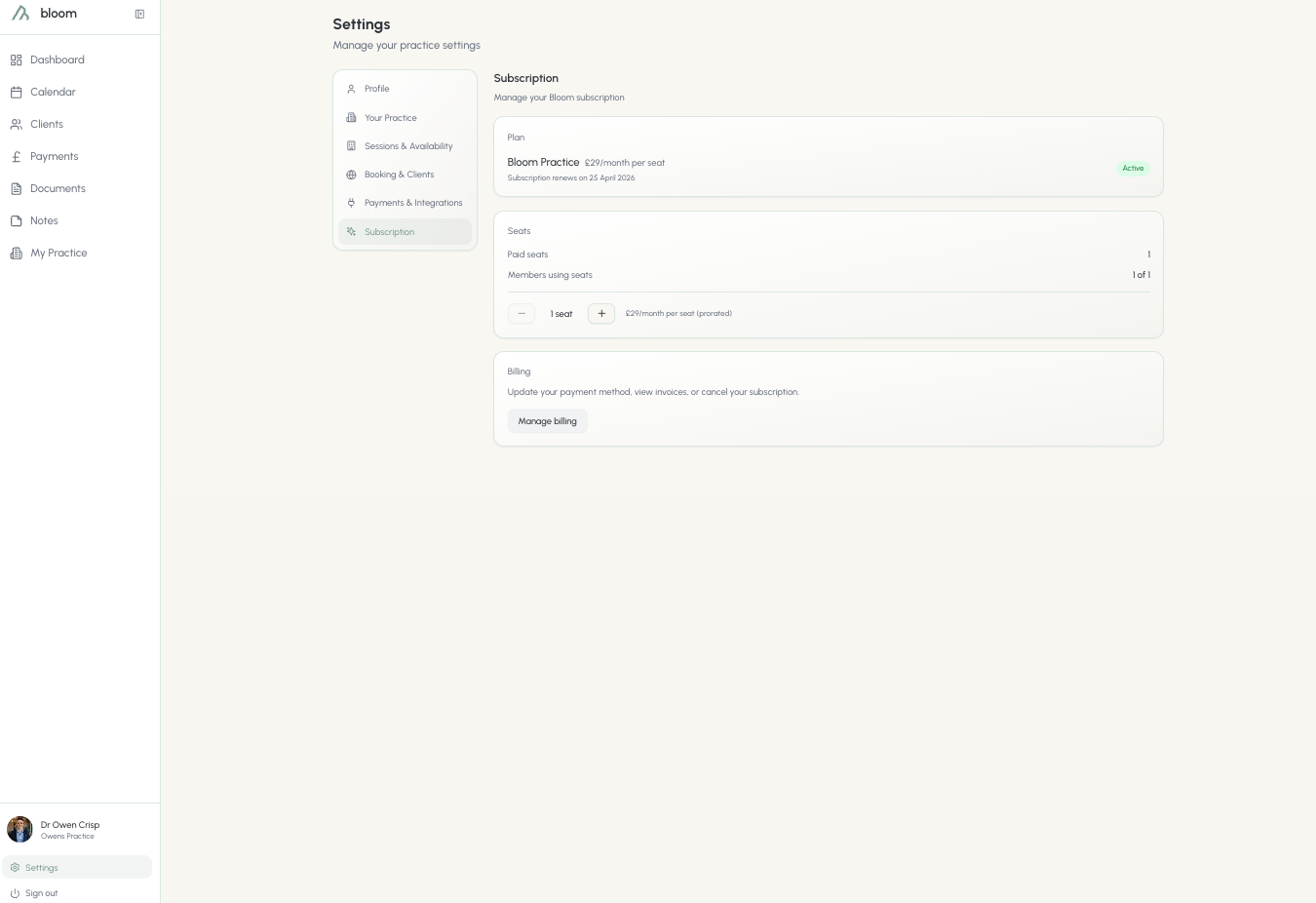
Seats
Seats are determined by how many colleagues you have on a subscription. If you’re a large practise and need over 5 seats, please get in contact via email and we’ll help you with a discount.Manage billing
If you need to update your payment method, view your invoices for accounting, or cancel your subscription, you can find all your information here. All billing is dealt through Stripe; Bloom does not hold any of your card details.If you’re experiencing a problem and considering canceling your subscription, please reach out to the team here directly. We’re more than happy to help.