

Money goes directly to your own Stripe account - Bloom never holds your funds and adds no fees of its own. Stripe’s standard card processing fees apply, billed to you by Stripe.
Set up Stripe
1
Open the Card payments card
Go to Settings, then Payments. In the How you get paid card, find the Collected through Stripe group.
2
Click Set up card payments
Bloom hands you to Stripe’s secure onboarding to verify your identity and add the bank account your payouts should reach. It takes around five minutes.
3
Finish verification
If Stripe needs anything more, the card shows Setup incomplete with the number of steps remaining - click Resume setup to carry on where you left off.
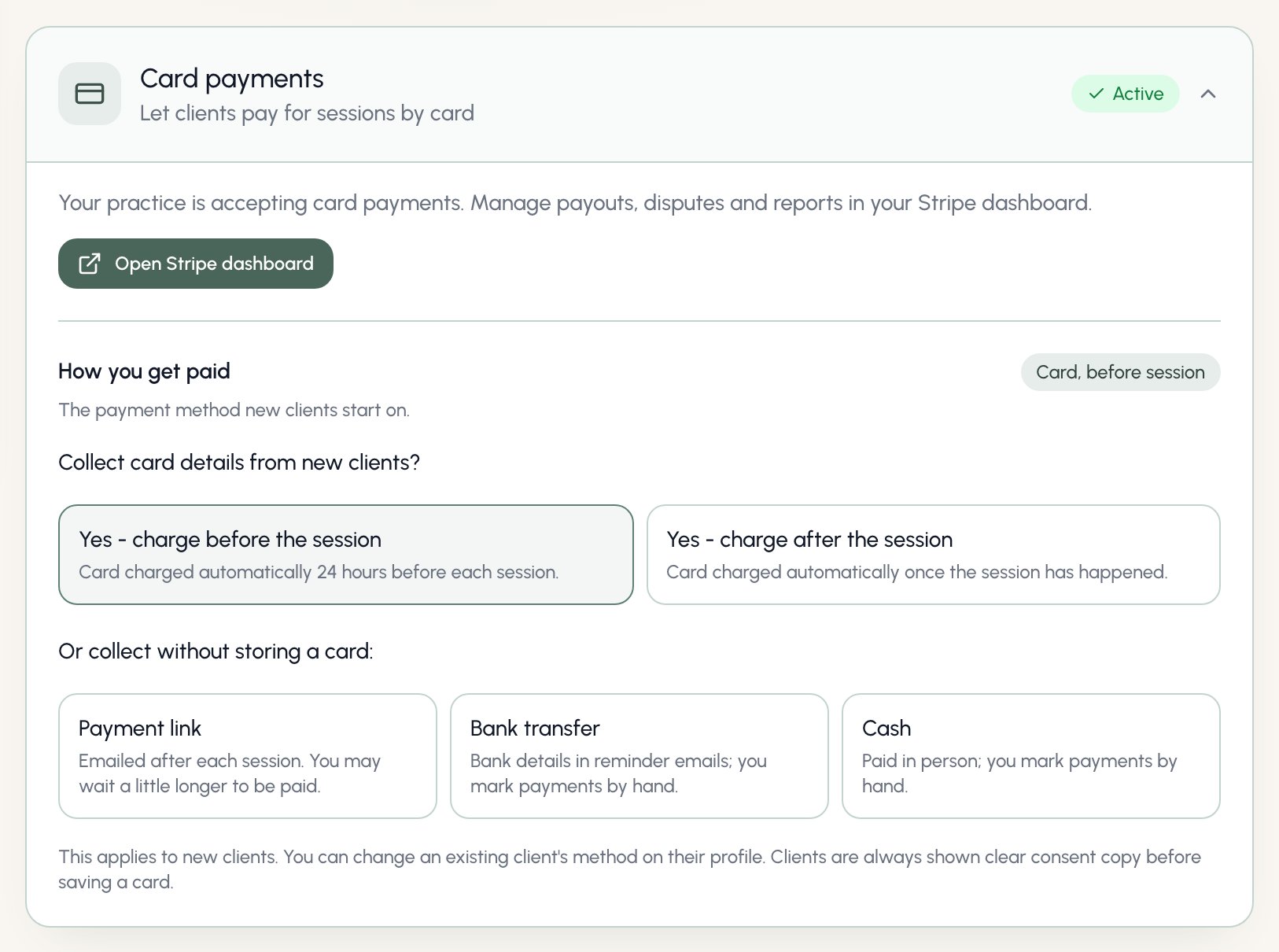
Choose how you get paid
Inside the Card payments card you’ll find How you get paid - the payment method new clients start on. It’s one question: collect card details from new clients, or not?- Card, charged before the session - the client’s saved card is charged automatically 24 hours before each session. They always receive a reminder first.
- Card, charged after the session - the card is charged automatically once the session has happened.
- Payment link - no card is stored. The client is emailed a secure Stripe link after each session. You may wait a little longer to be paid.
- Bank transfer - your bank details appear in reminder emails and you mark payments by hand, exactly as before.
- Cash - the client pays in person and you mark payments by hand. No payment emails are sent chasing them.
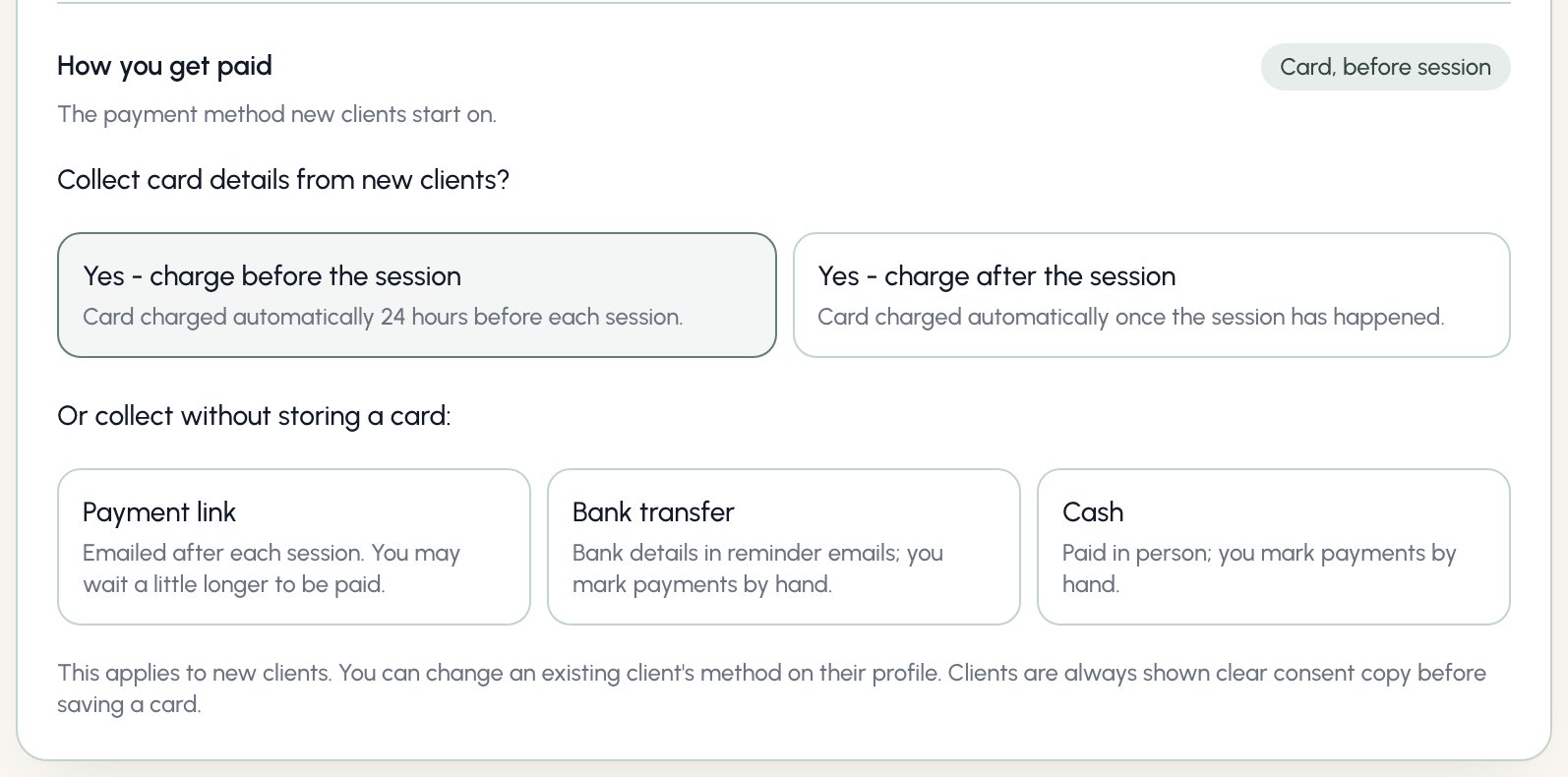
This setting only applies to new clients. Changing it never touches anyone already on your books - you change an existing client’s method on their profile.
Per-client payment methods
Every client has their own payment method. When you add a client, the method is pre-filled from your default - change it for that client if you need to.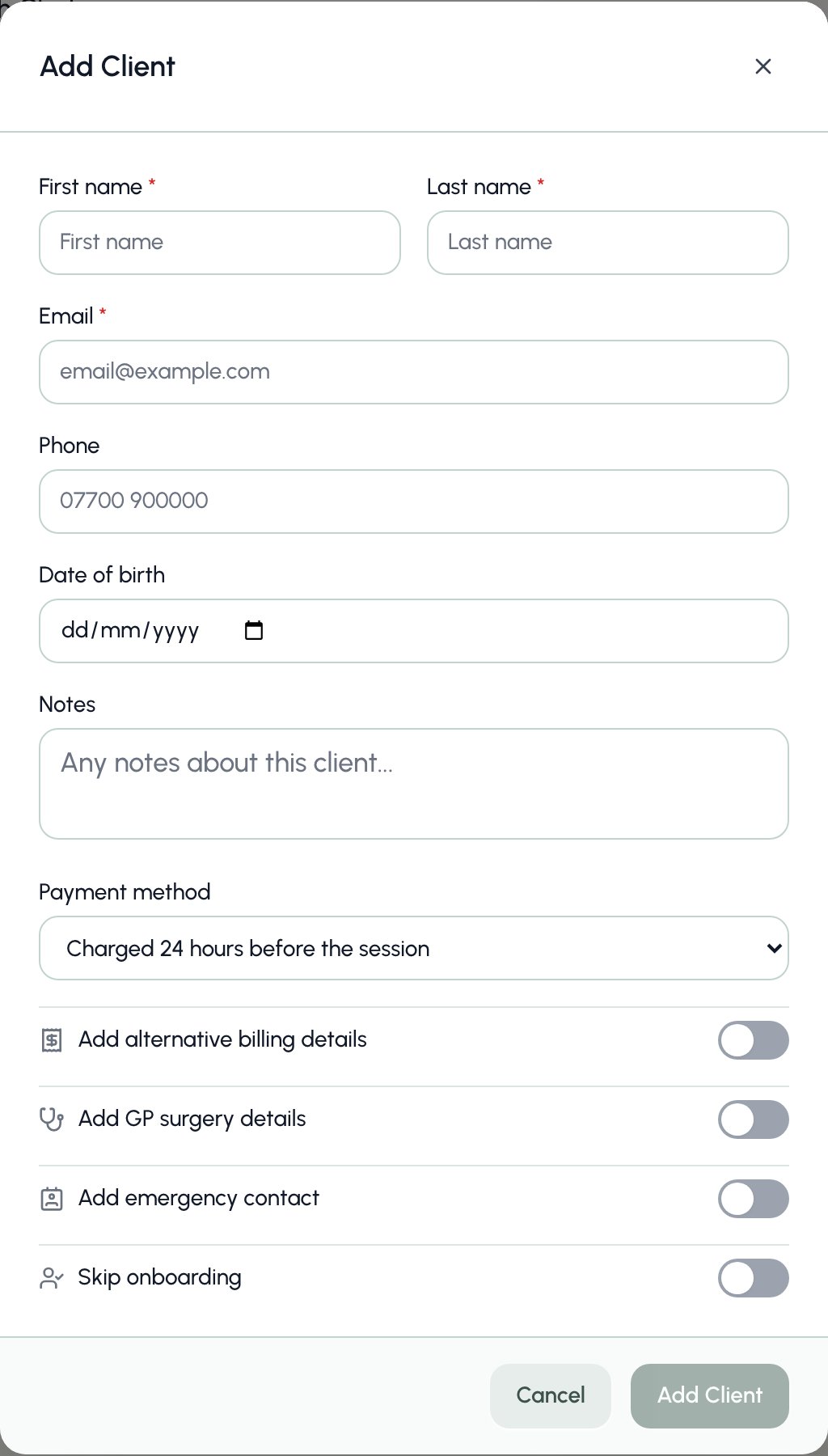
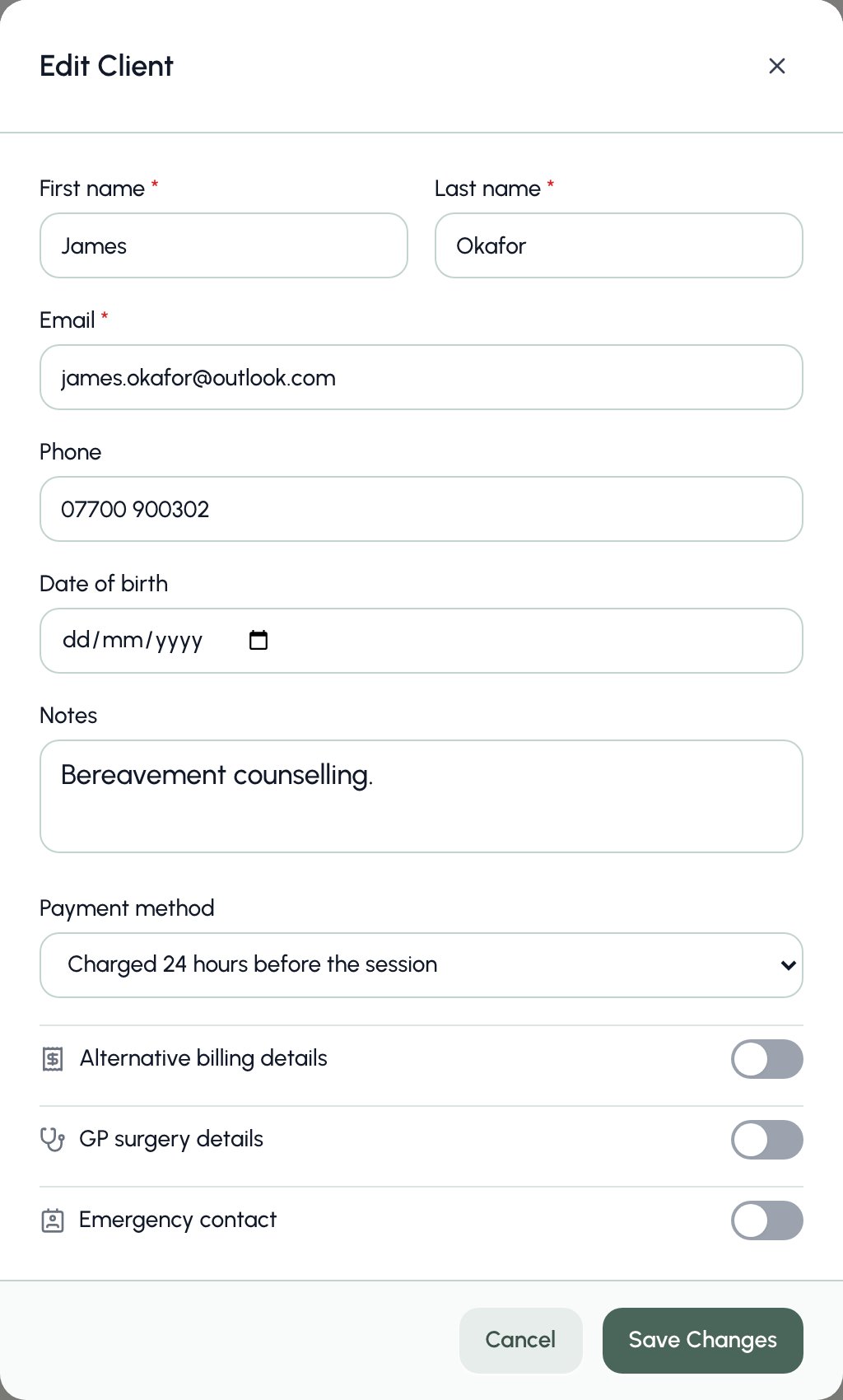
- Moving to a card method - if the client has no card saved yet, Bloom emails them a secure save-card link straight away. Until they save one, they simply receive payment links instead - there’s never a gap where nothing is collected.
- Moving away from a card method - Bloom asks whether to keep the saved card on file (handy if you switch back) or remove it from Stripe entirely. The choice is yours.
- Changes apply from the next collection onward. Sessions already paid are never touched.
How clients save a card
Clients on a card method are asked to save a card as a step of their onboarding, right after signing your agreement. For existing clients, choose Request card details from the Actions menu on their profile - Bloom emails them a secure link you can re-send any time.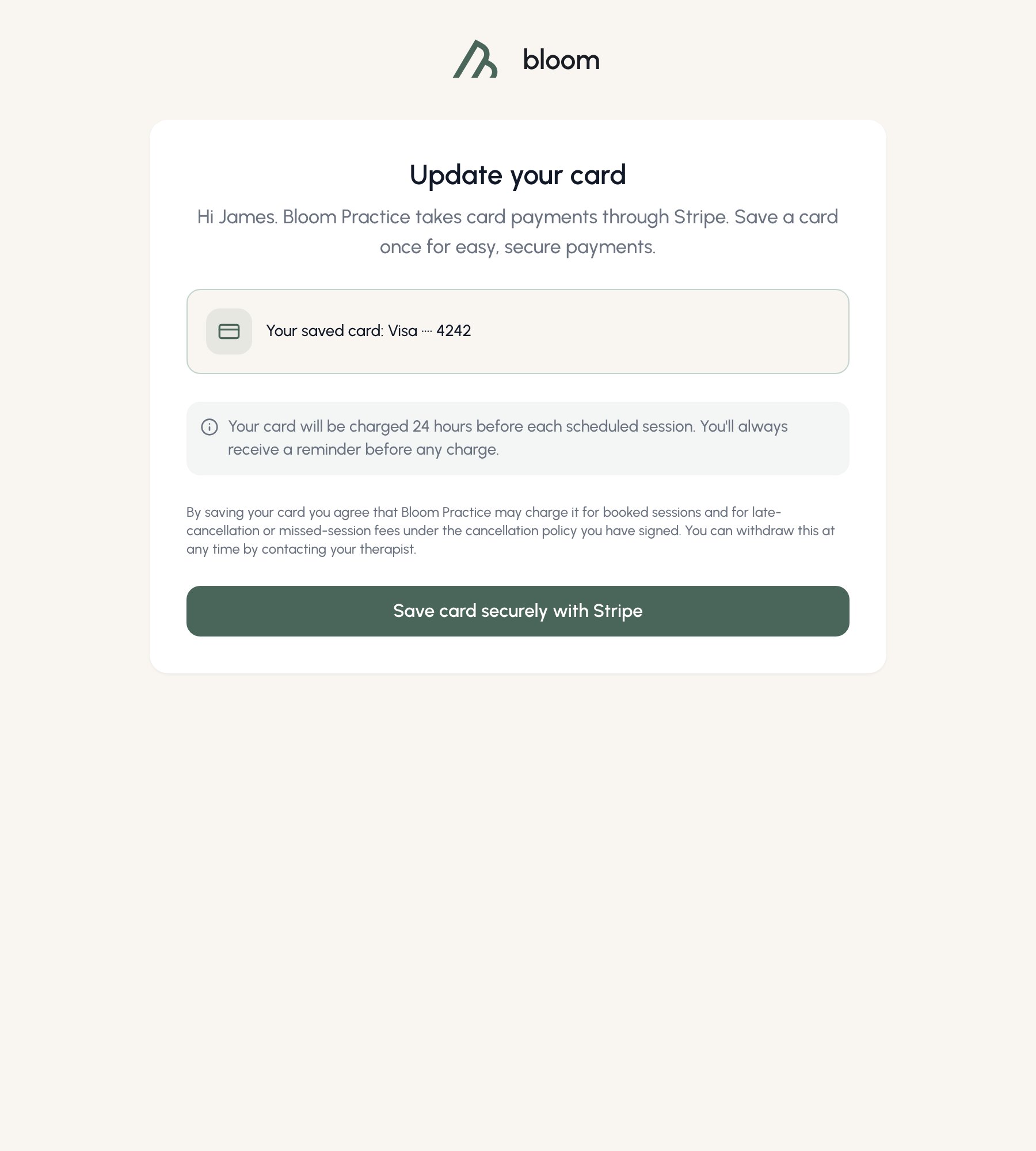
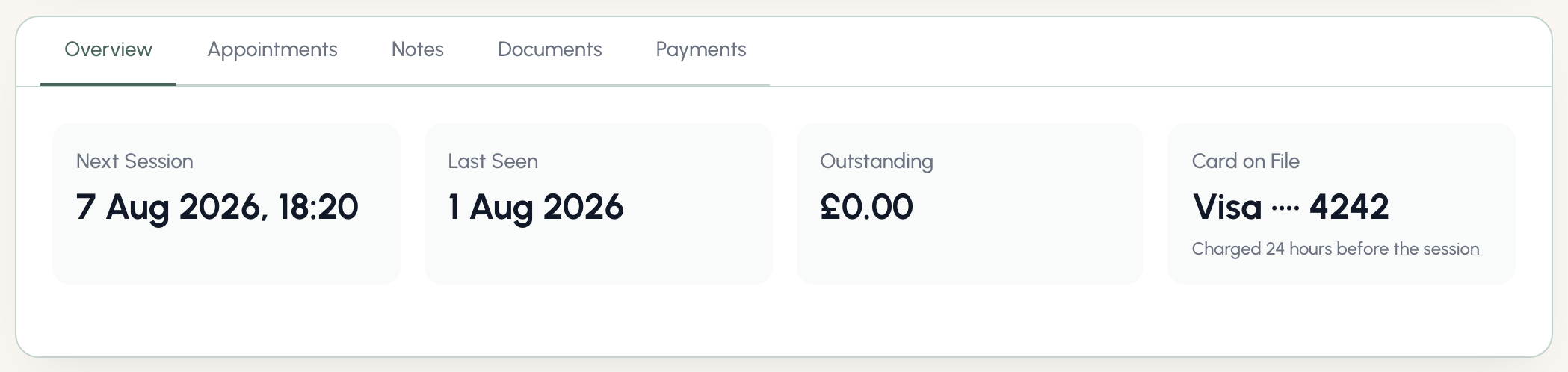
Automatic charging
- Charged before the session: Bloom charges the saved card 24 hours before each appointment. The appointment reminder email tells the client their card is about to be charged, so it never comes as a surprise. Sessions booked with less than 24 hours’ notice are charged shortly after booking.
- Charged after the session: the card is charged once the session completes (or is marked a no-show).
If a charge fails
Bloom retries failed charges up to three times over 24 hours. If the card still won’t go through, the client automatically receives a friendly email with a payment link they can complete themselves - which also solves bank-authentication declines, since the client approves the payment on Stripe’s page. You get an email too, and the session appears in Needs your attention on your dashboard with a one-click Retry charge.Cancellations, no-shows and refunds
Your cancellation policy - the notice period and fee percentage from Settings - is applied automatically:- A client cancelling inside your notice period sees a clear warning before confirming: the exact fee, and the card it will be charged to. The fee is charged immediately on cancellation.
- If the session was already paid (charged before the session), refunds are automatic: cancel it yourself and the client is refunded in full; if the client cancels outside your notice period they’re refunded in full; inside the notice period they’re refunded everything above your cancellation fee. The client receives a plain, friendly email either way.
- Marking a no-show offers to charge the full session fee to the saved card. Untick it to be lenient - the fee is waived so nothing chases the client later.
Once a card payment has been taken, the session fee is locked. If the amount was wrong, refund the payment from the Payments page and re-record it.