At a glance
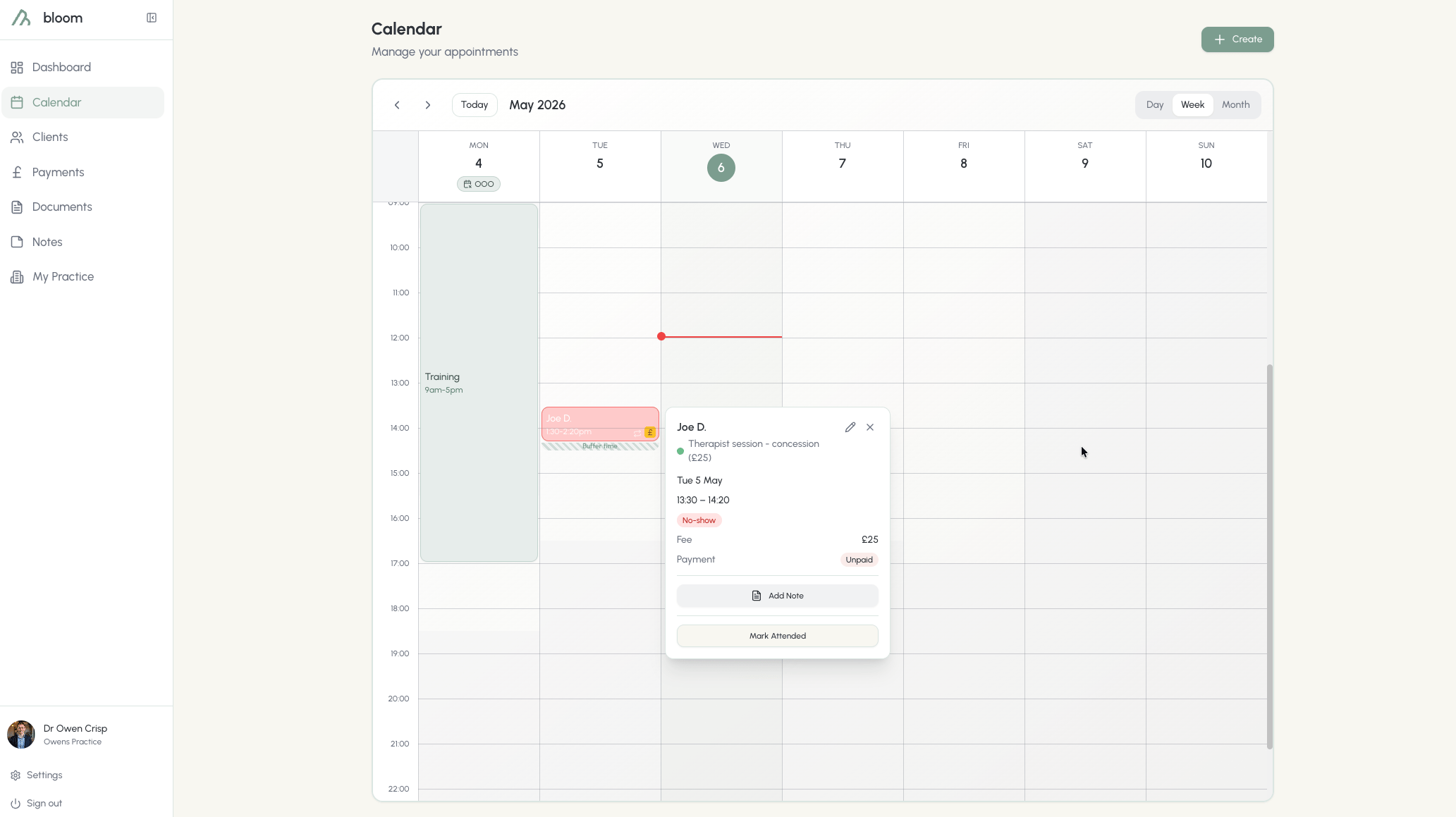
Once you’re set up and ready, scheduling sessions has never been easier. You’ll see booked sessions begin to populate your week, dictated by the time and buffer time you set. Requests from your booking link land here too, as pending sessions alongside everything else, with the length of the session type the client chose and your usual buffer time.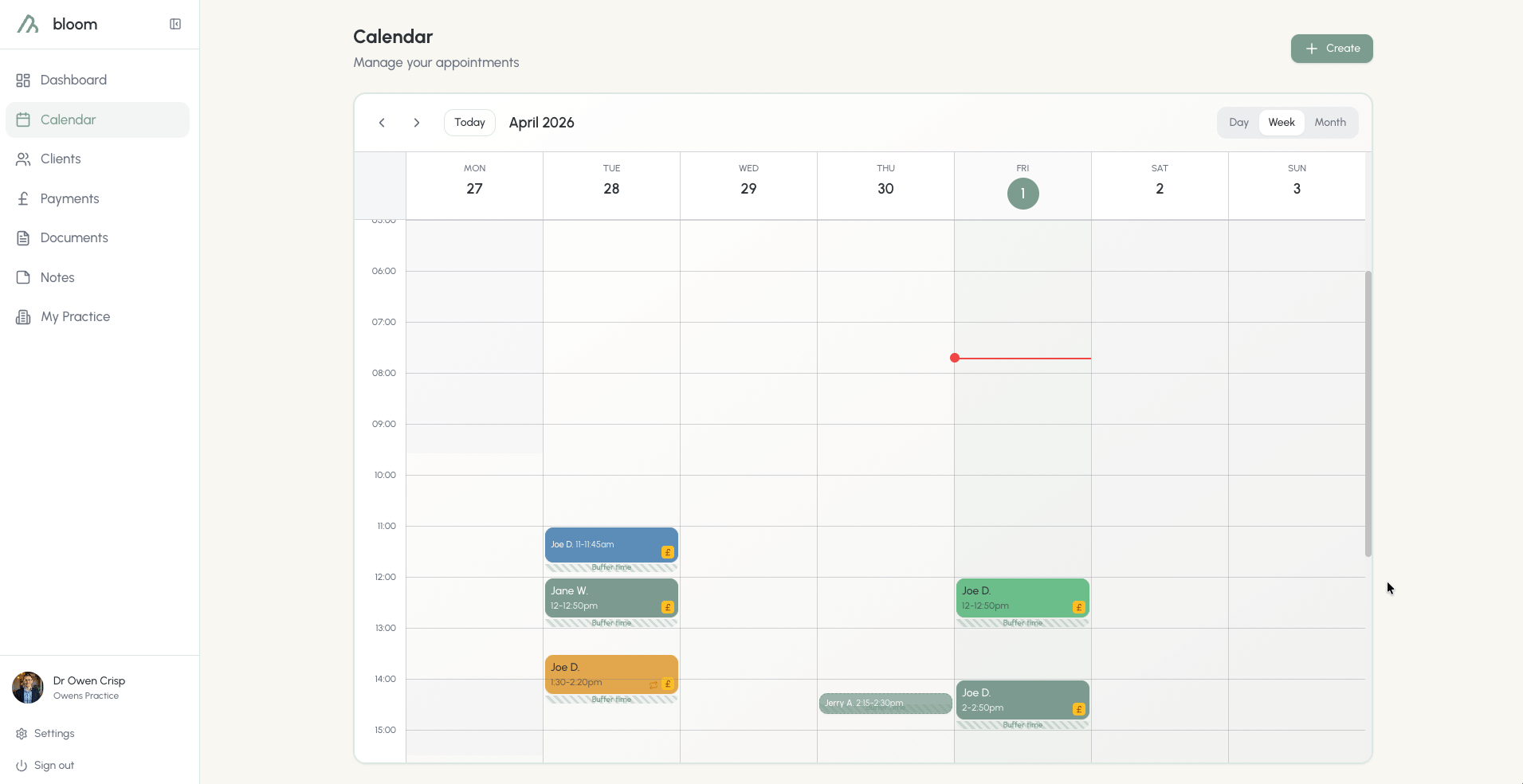
Client quick view
Clicking on each appointment will open the door to the client’s quick view, allowing you to see the following information: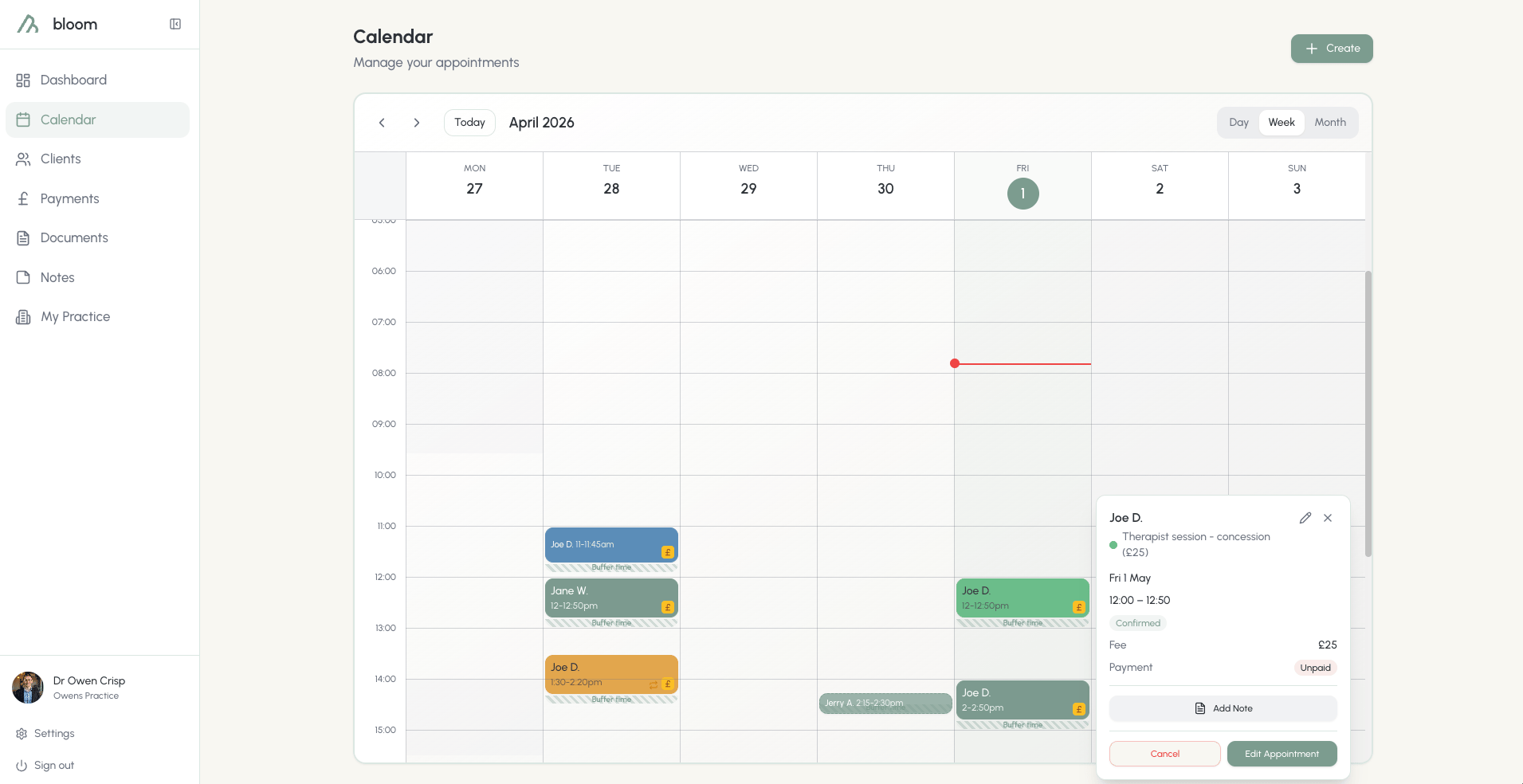
- Who is booked into the session
- What type of session they have, and their fee
- Where the session takes place, if you’ve added a location
- Whether or not the session has been paid for
- Add client notes directly, saving you from finding the client in your roster to add notes.
- Edit the session duration, to the minute. Alternatively, you can simply drag the session to another timeslot to automatically reschedule.
Scheduling sessions
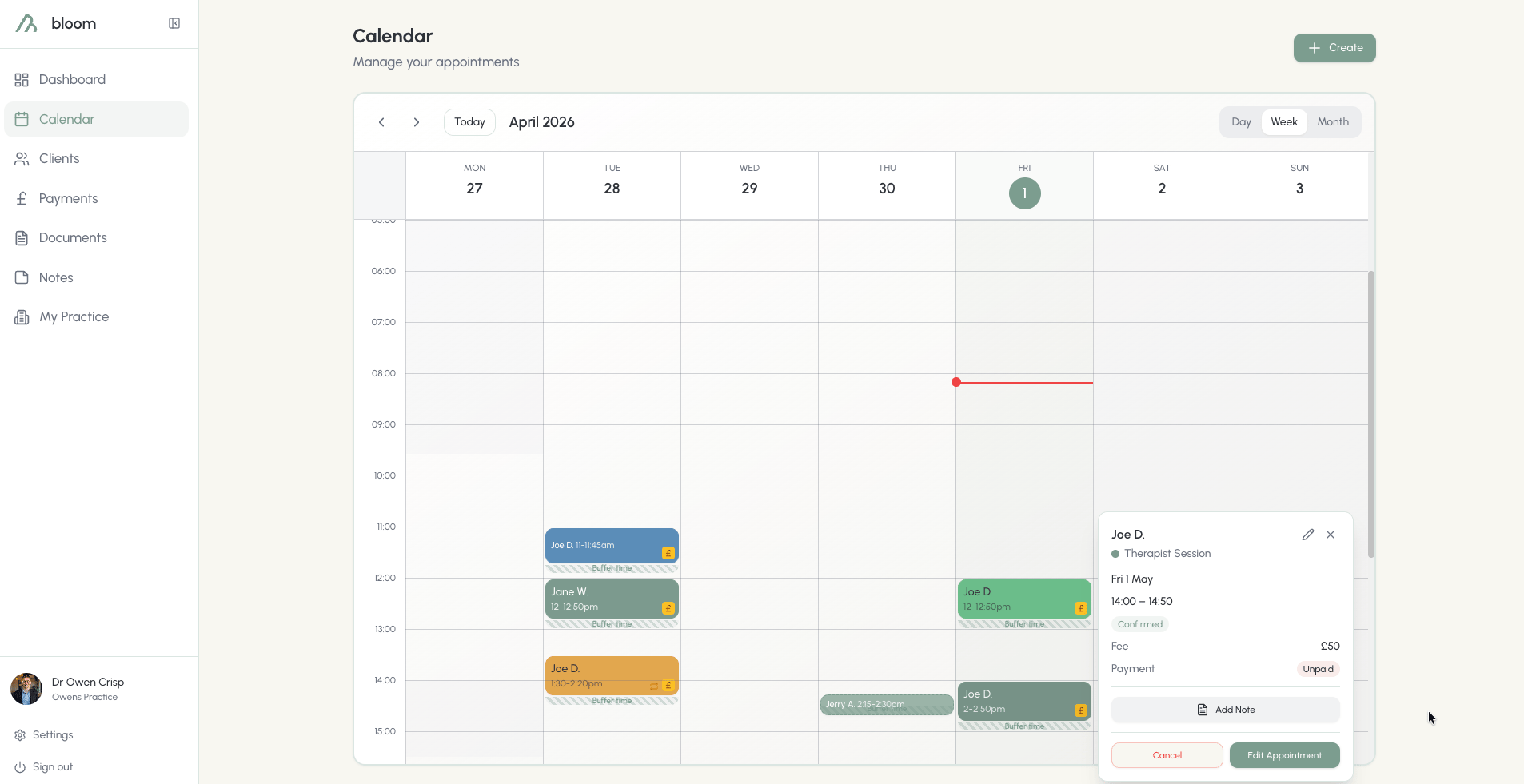
Scheduling sessions takes but 30 seconds. In the calendar, you can schedule single or recurring sessions or set your OOO (Out of Office) timings.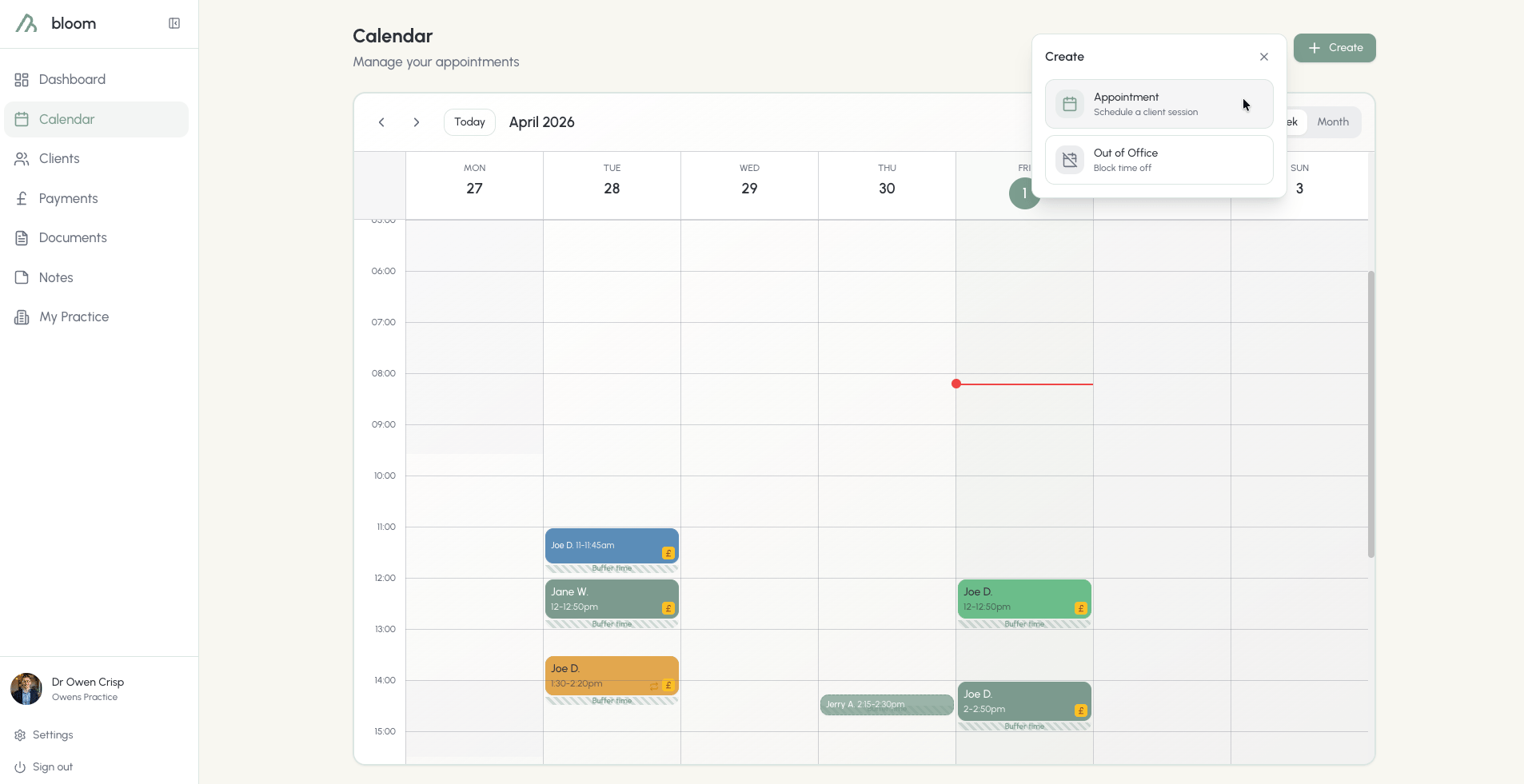
New sessions
When clicking on Appointment, the default will be a custom session time. While we understand that you might have a set block of session types, we also give you the flexibility to schedule a session outside of your regulars.Google Calendar clash warnings
Enable clash warnings in Settings > Calendar to check your selected Google calendars when you create an appointment. Bloom only reads busy times, not event names or details. If there is an overlap, Bloom shows the busy times before saving. Choose Change time to adjust your appointment or Create anyway to keep it. Repeat appointments are checked for every date. If Google cannot be checked, you can still continue after the notice.Pre-defined session types
If you’re a creature of habit and never stray from your typical session bookings, your pre-defined session types are here and ready to go. These are the sessions you created in the settings tab, as you build your practice: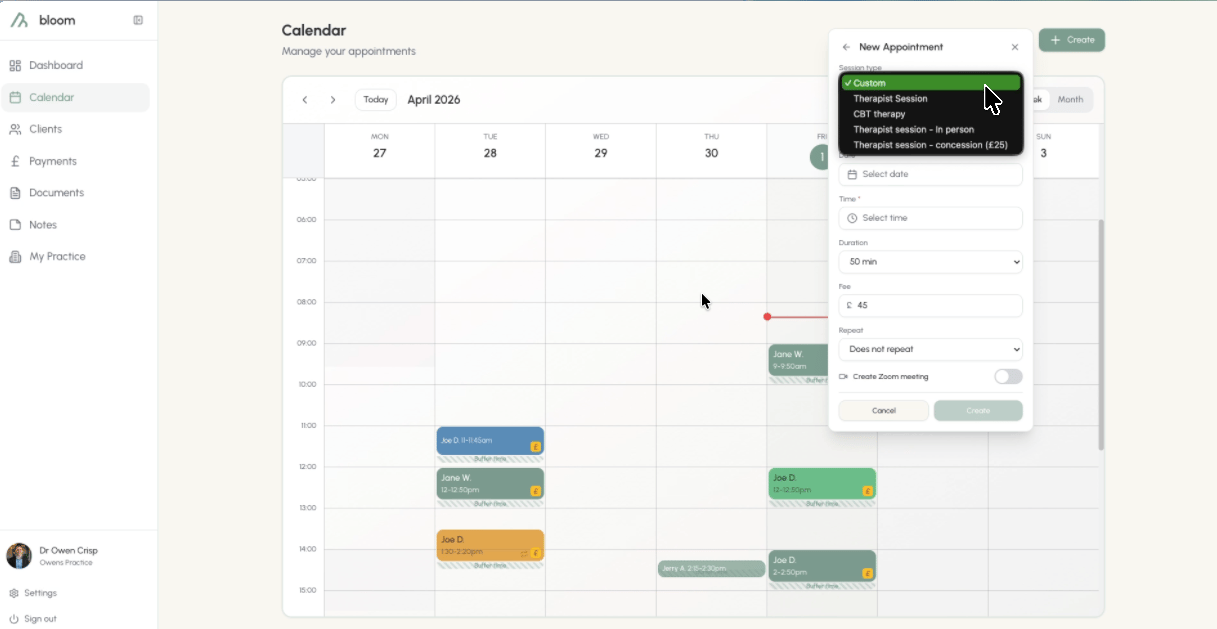
Clients must be pre-registered inside the system before you can schedule any further appointments.
Session location
Use the Location field on a new appointment to note where the session takes place. For example, the room you’ve booked, your clinic’s address, or “Phone”. It’s optional and holds up to 200 characters. For recurring sessions, the location is added to every session in the series. You can change or clear it later from the client’s quick view with Edit appointment.The location is for you only. It’s never shown to your client and isn’t included in any email Bloom sends them. If your client needs directions, add them to Message to client instead.
Recurring sessions
Sessions can be set to recur weekly, biweekly, or monthly. This can be done for a set number of sessions or until a certain date.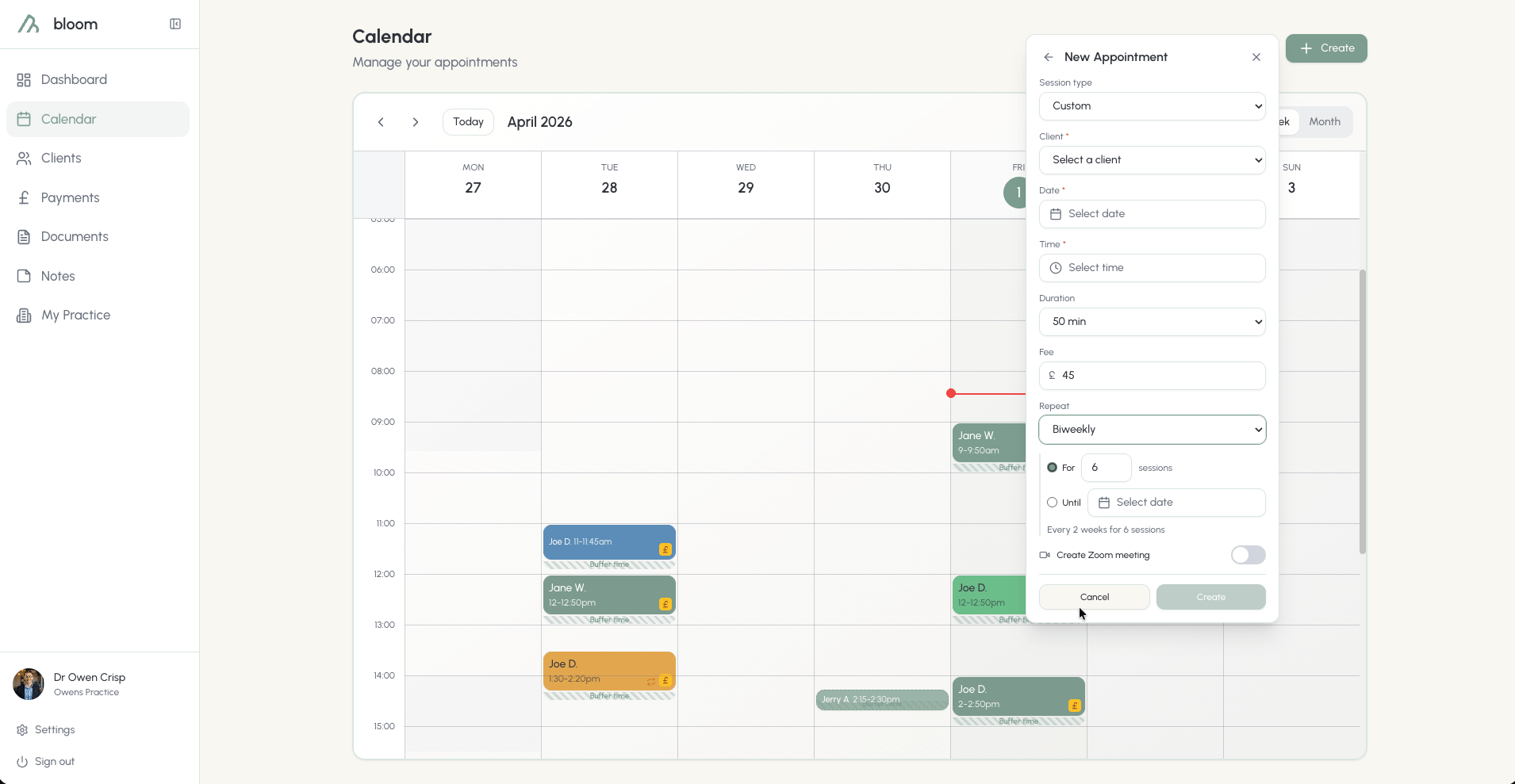
Altering sessions
Sessions can easily be moved around by time or date. There are a few ways to do this:1
Drag to reschedule
Need an extra 15 minutes to get to the post office before it closes, or pick the kids up from an after-school club? The easiest way to reschedule a session is to simply drag it in the calendar. Dragging sessions lets you reschedule in 15-minute blocks.
2
Fine-tune the time
For better granularity, open the client’s quick view and click the pencil icon or edit appointment button - this will allow you to fine-tune the session times.
3
Change the date
To change the date of a session beyond the current week, the session will need to be cancelled and rescheduled.
When you reschedule a session, the client will be automatically notified via email.
Cancelling sessions
Cancelling sessions is as easy as scheduling them. In the client’s quick view, click cancel. When you attempt to cancel a session, the calendar will ask again to ensure it’s not deleted accidentally. As with rescheduling, cancelling a session will automatically notify the client via email. If the client pays by card, the cancel confirmation does the money-work for you: late cancellations offer to charge your cancellation fee to the saved card, and sessions that were already paid are refunded to the client automatically. See Card payments for the rules.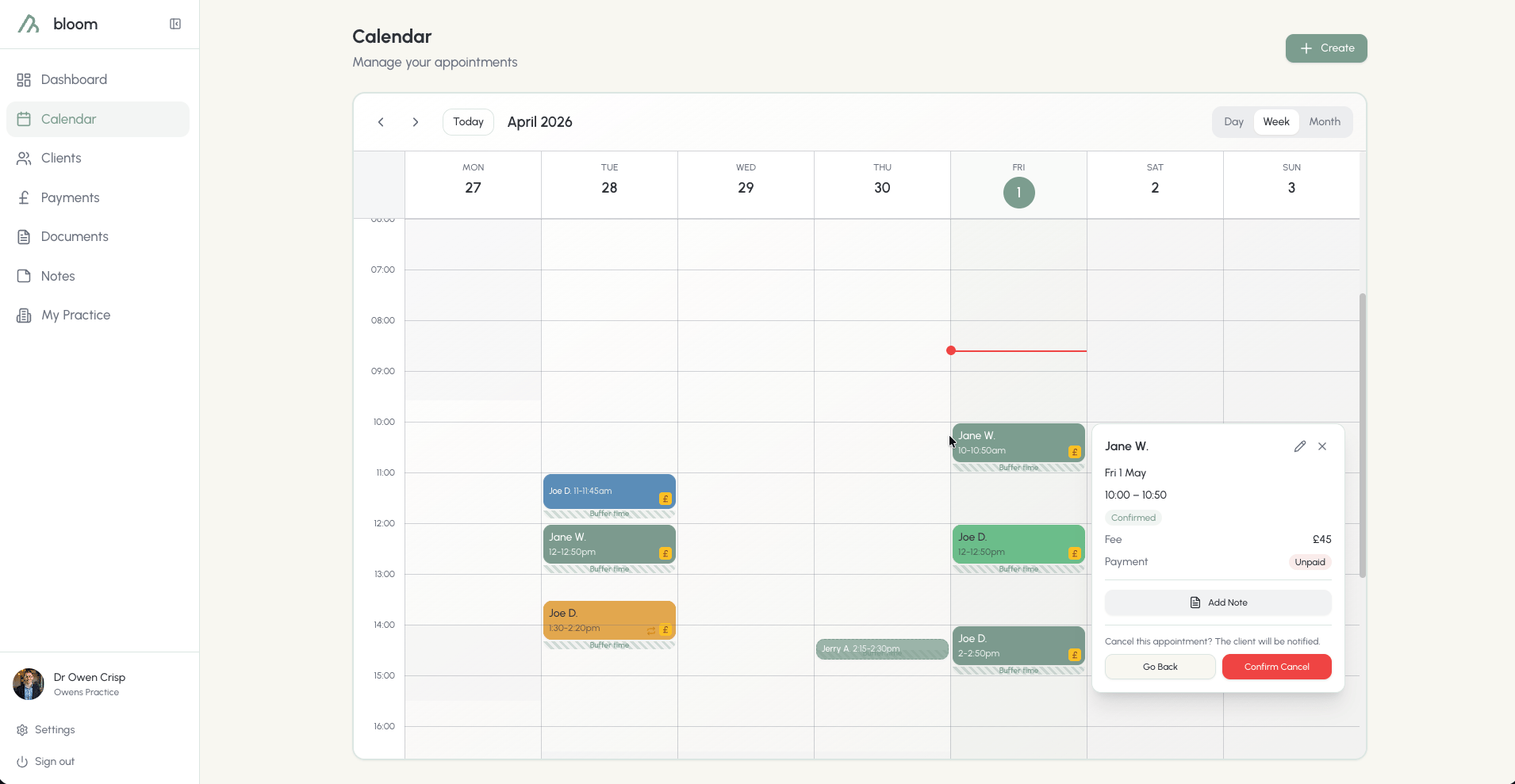
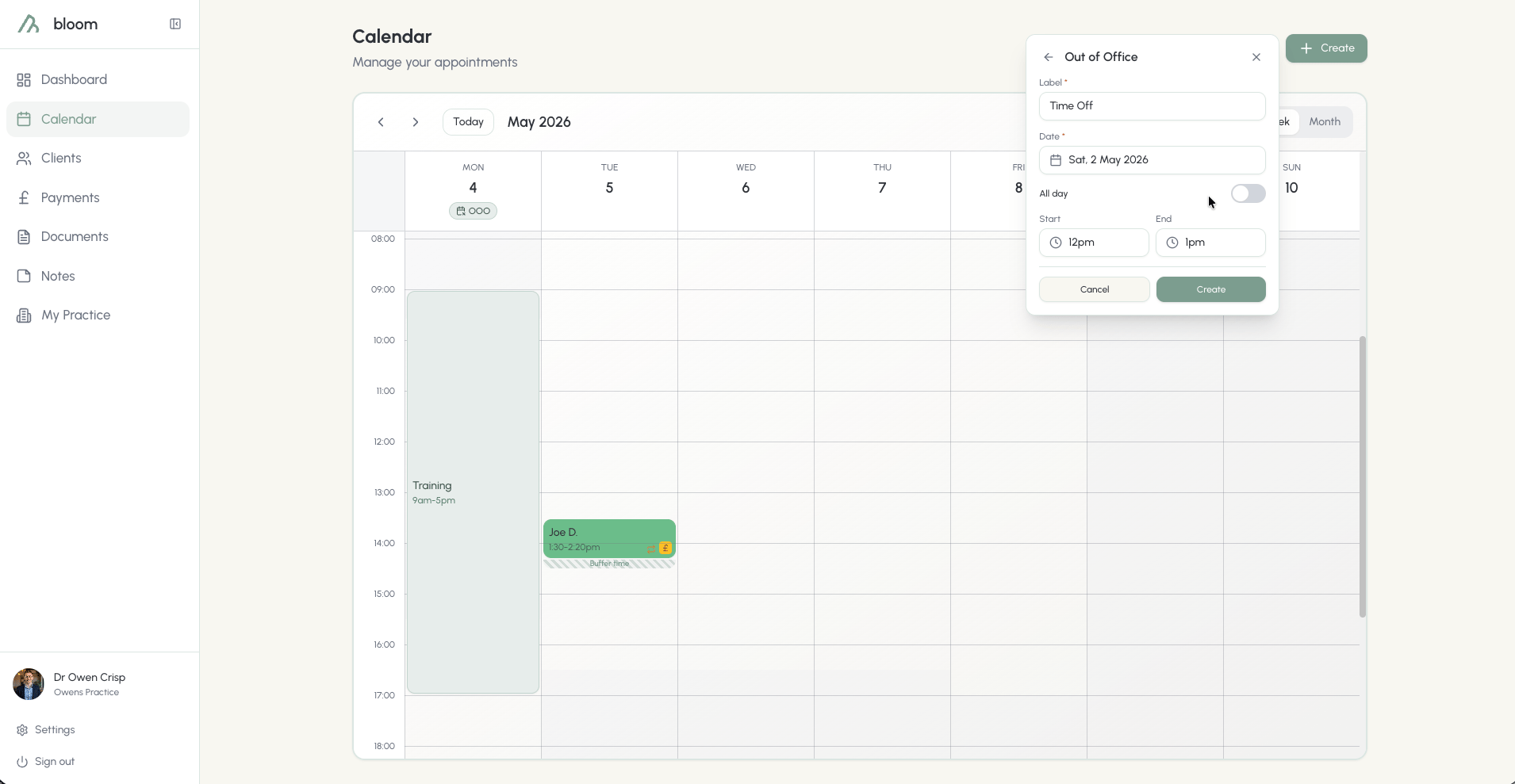
Out of Office
If you’re looking to book OOO, it can be scheduled easily in the Calendar. OOO time will appear as a time block in the calendar and can be scheduled for whole days or specific time periods. If you choose all day, OOO will honour your set working hours.Currently, OOO time needs to be scheduled in 1-day increments.
No shows
Marking no-shows creates an important note on a client profile, allowing you to easily track where you’re leaking time and session capacity. In the event a client no-shows, click on the appointment once it has finished in your calendar and mark it as a no-show. For card clients, marking a no-show offers to charge the full session fee to their saved card - untick the box to be lenient and the fee is waived instead.