Adding a client
On the client’s page, adding a new client is done by using the Add Client button in the top right of the screen.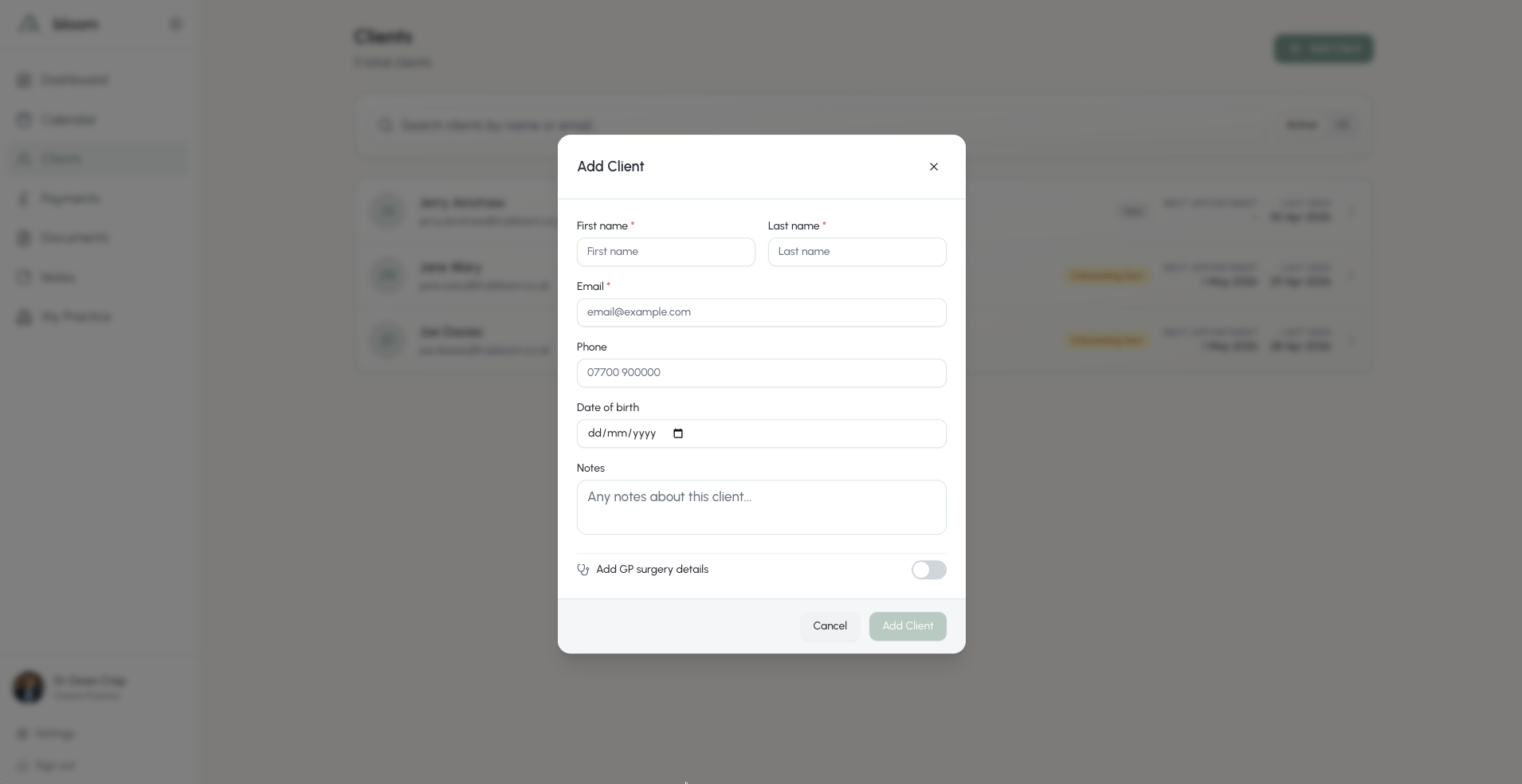
- First name
- Last name
- Telephone number
- Date of birth
- Any initial notes you’d like to keep on file in this client’s profile. Separate from notes you may add in the future, and only viewable by yourself.
- Payment method - how this client pays, pre-filled from your default (see Card payments)
- Alternative billing details, if someone other than the client pays for their sessions
- GP surgery and contact details
- Emergency contact details
- An intake form to send with their onboarding - your default form is pre-selected if you’ve set one (see Forms)
Name and email are the only required fields in adding a client; all other information is optional but encouraged.
Skipping onboarding
Not every client needs the full onboarding flow. If you’re bringing an existing caseload into Bloom and your clients have already signed your agreement elsewhere, turn on Skip onboarding when adding the client. Bloom won’t email them, and they’re marked as fully onboarded straight away. If you’ve chosen an intake form for the client, it’s emailed to them as its own link instead of riding the onboarding flow. Already added the client? Open their profile and choose Skip onboarding from the Actions menu. Bloom asks you to confirm before making the change:- No onboarding email is sent, and any previously sent onboarding link stops working.
- The client won’t be asked to sign your counselling agreement in Bloom, and any unsigned agreement is removed from their file.
- The client is marked as fully onboarded.
Skipping onboarding means Bloom holds no signed agreement for that client. Keep your own copy on file, or send them your agreement at any time with Send contract from the Actions menu.
Billing details
If someone else pays for a client’s sessions - a parent, an employer, or an insurer - or your client simply wants payment emails in a separate inbox, turn on Add alternative billing details when adding the client (or Alternative billing details when editing them). You can set a billing name and a billing email. Once a billing email is set:- Payment emails - payment reminders, invoices and receipts - go to the billing email instead of the client.
- Session emails - confirmations, reminders and cancellations - still go to the client’s own email.
- If a session is still unpaid the day before, the client receives their usual session reminder while the billing contact receives the invoice.
- Invoices are addressed to the billing name, with the client named beneath.
If you’ve customised your payment reminder email in Settings, the client first name placeholder fills with the billing name on emails sent to the billing contact.
Payment method
Every client carries their own payment method - card charged before the session, card charged after, payment link, bank transfer, or cash. New clients start on your default from Settings, then Payments, then How you get paid; the add-client form pre-fills it so the fast path is zero extra taps. Change it any time from Actions → Edit details on the client’s profile - it saves together with the rest of their details: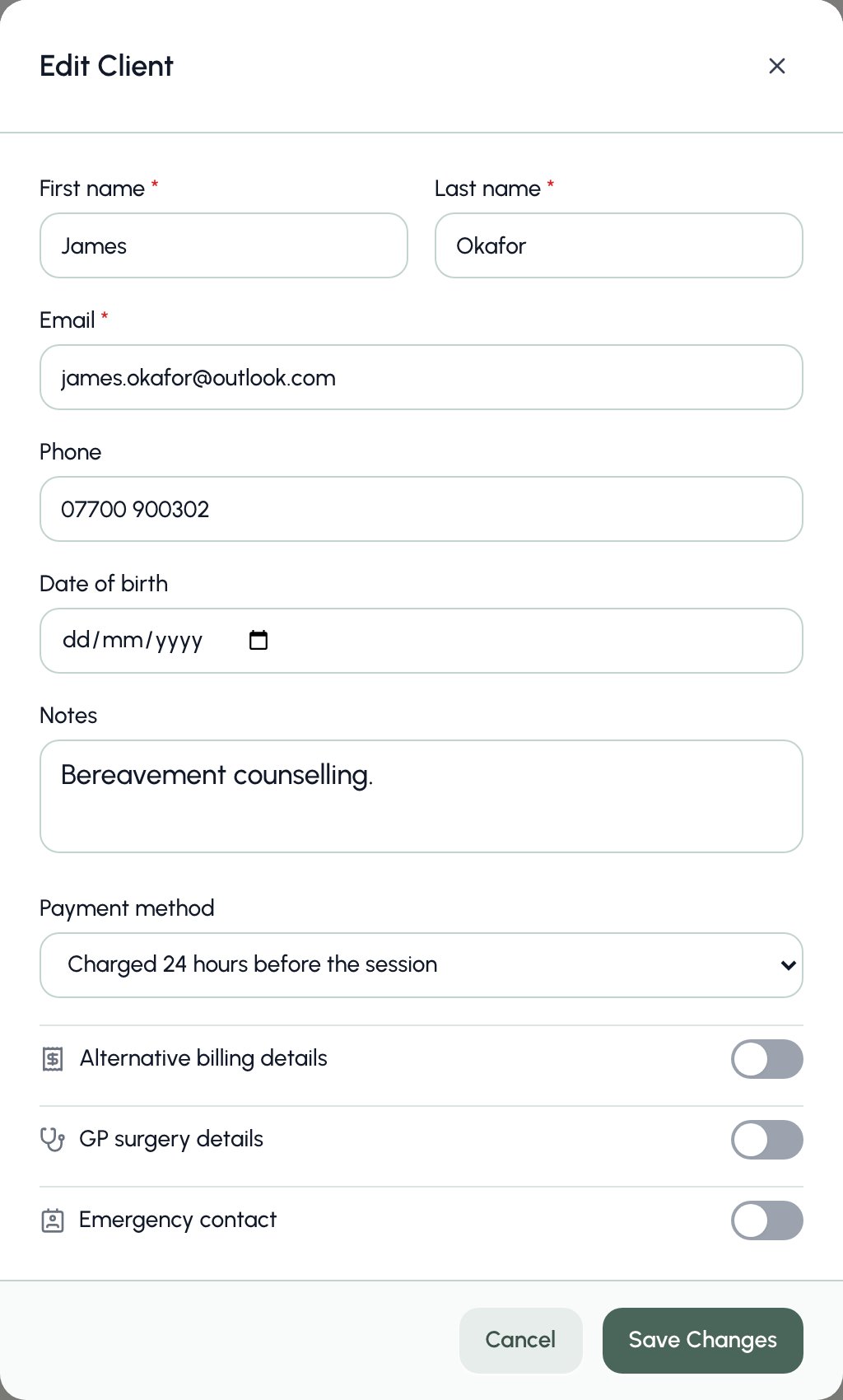
- Moving to a card method emails the client a secure save-card link if they don’t have a card on file yet. Until they save one, they receive payment links instead - nothing goes uncollected.
- Moving away from a card method asks whether to keep the saved card on file or remove it from Stripe.
- Need a new card from a client? Choose Request card details from the Actions menu - the link can be re-sent as often as you like. The action only appears for clients on a card or payment-link method.
Last seen
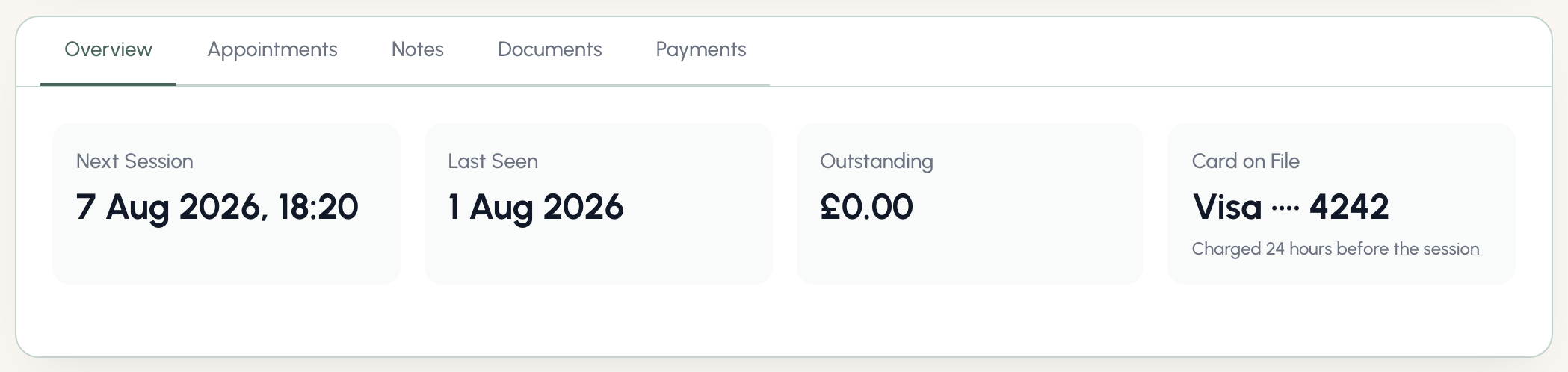
Last seen allows you to understand when the last time you had a successful appointment with a client.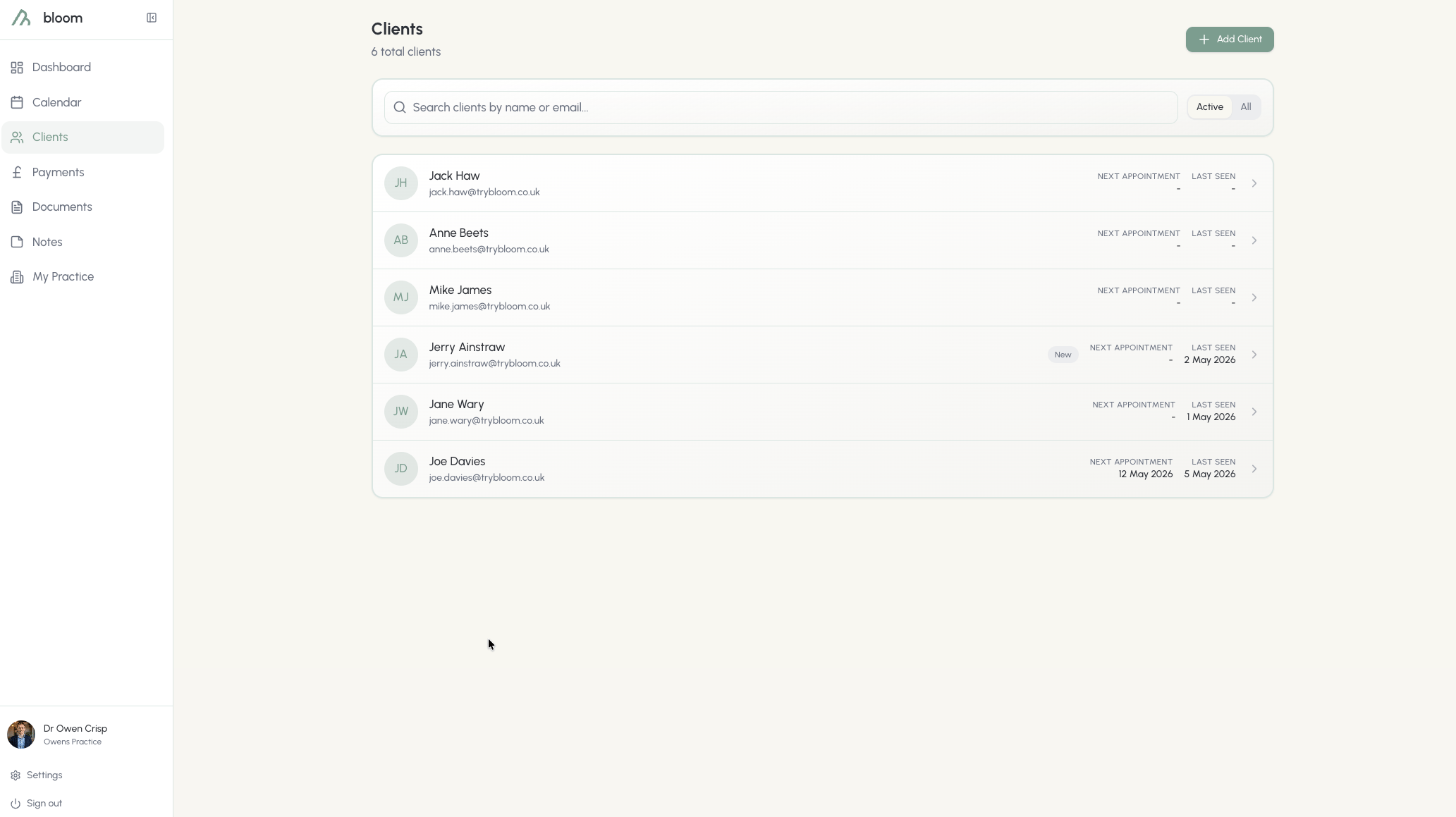
Active versus All
We understand that clients come and go. A job well done is one where a client leaves with the burden of their troubles lifted from their shoulders. Active clients are all those in your current care, including those in immediate sessions or part of your current client base.Removing and deleting a client
Clients who fall under All are those who have been removed from your active client base. Their data is archived and stored only for as long as necessary, in accordance with GDPR regulations.Should a client request removal in accordance with their rights, please contact us to permanently delete their data within a shorter time window.
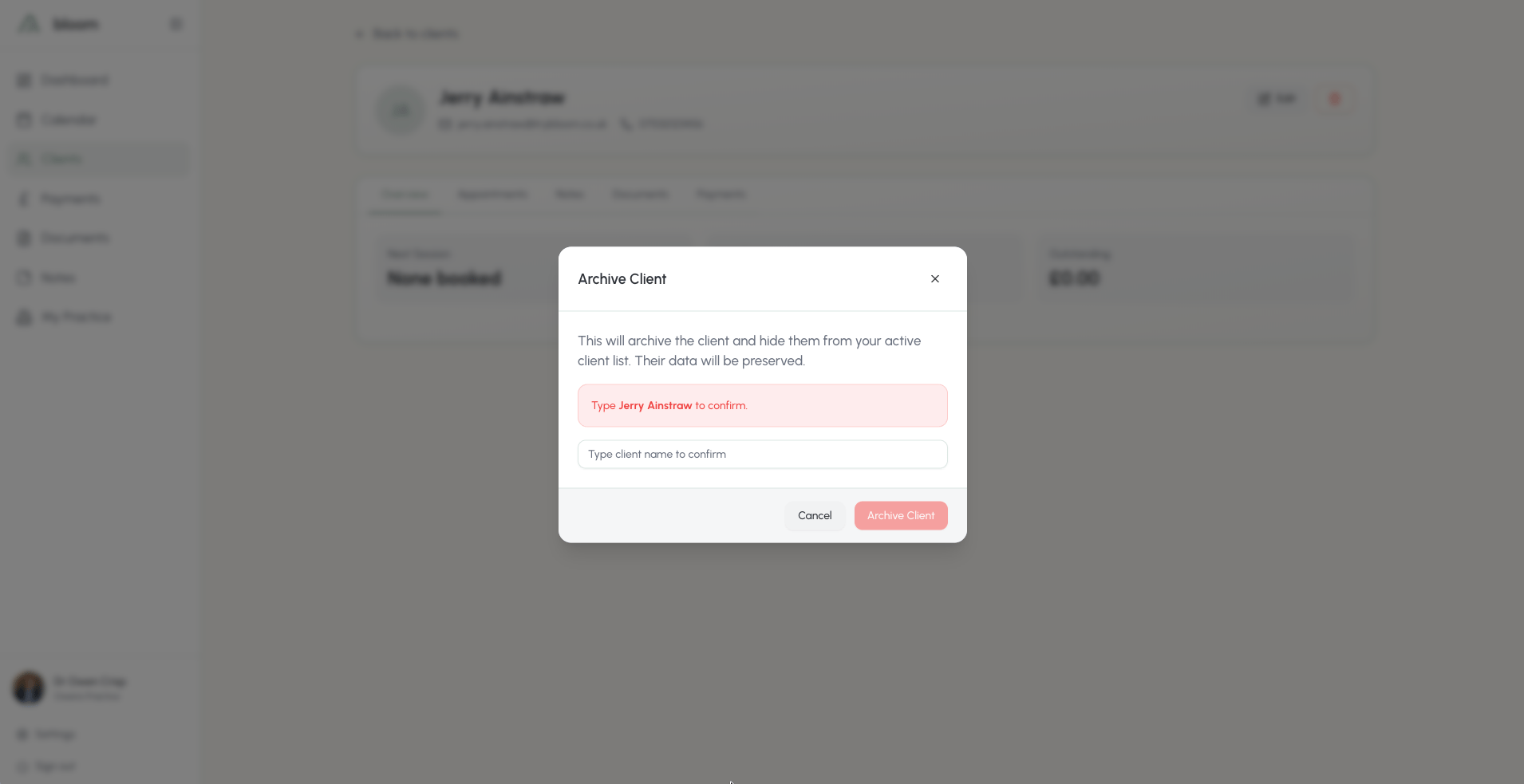
Unarchiving a client
In the unlikely case you find yourself accidentally archiving a client, or in need of restoring the data of a recently removed client - it can be done easily by clicking the restore arrow next to their name, in the All section: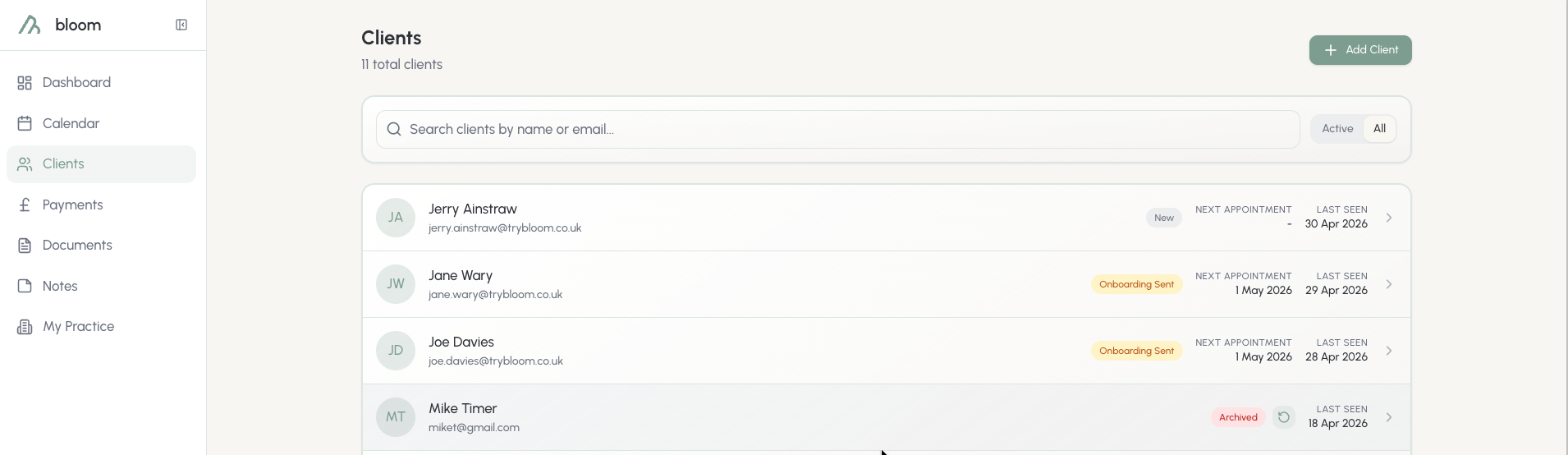
Client overview
To go deeper, each client you have will come with their own client overview. While most of their data is reachable from other avenues (such as notes from the calendar), the client overview can be thought of as the “hub” of each individual. Here, you’ll see:- Appointments, past and present
- Session notes
- Documents the client has been sent, or signed
- Forms sent to the client and internal forms you have completed for them
- Payments, paid or unpaid
Client appointments and notes
Here you’ll find all appointments, past and present, along with their fees. If notes have been added, they’re available to view here. Notes that were already submitted for the session can be easily edited and pinned in this view. Pinning session notes here keeps them at the top of the client’s notes list, so you can pin the most important batch without searching.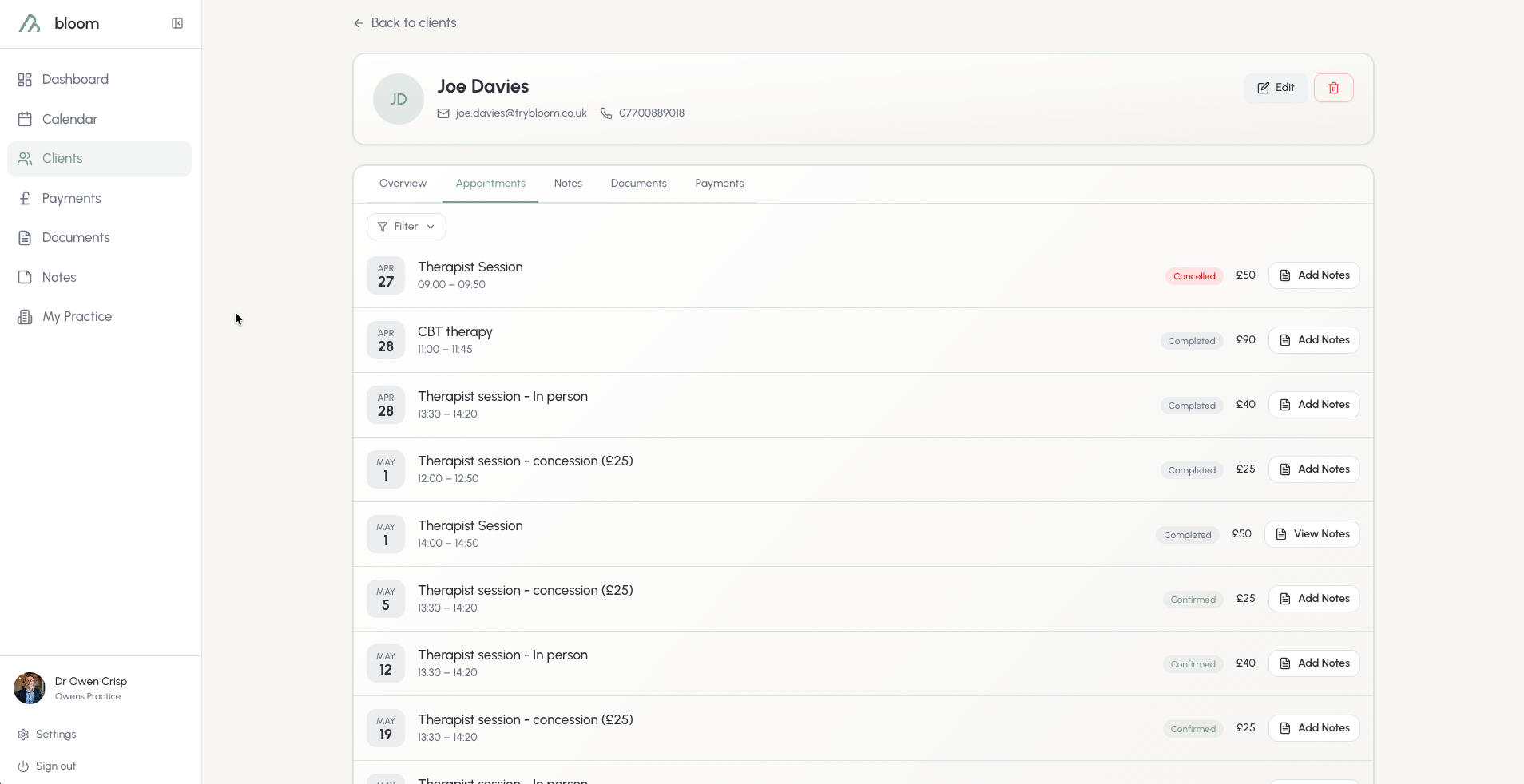
Client documents
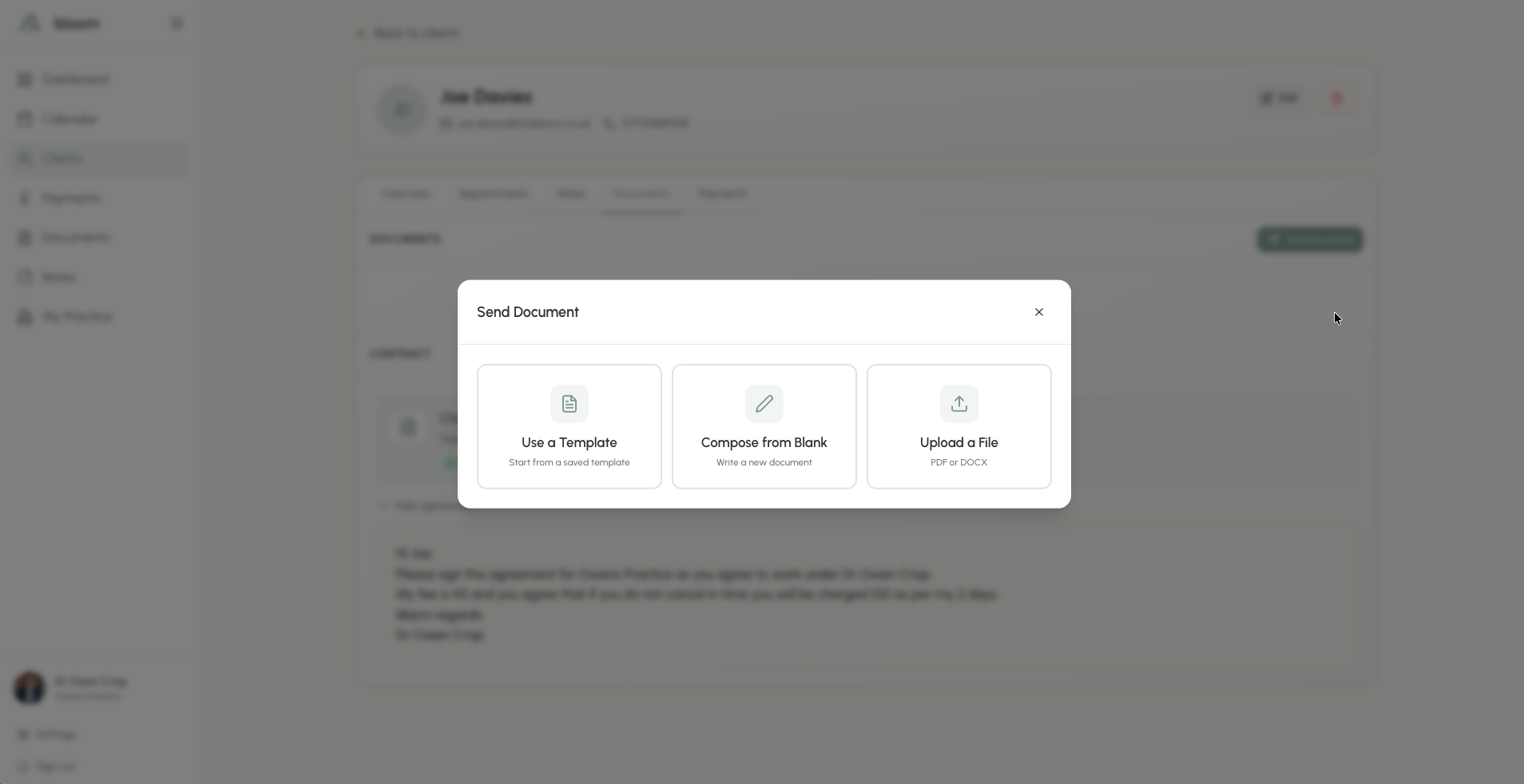
Individual client documents are stored for each client, allowing you to see everything sent or signed by each client in one place. The Contracts section lists every contract the client has been sent or signed - the counselling agreement from their onboarding, any newer version you’ve sent since, and any other contracts of yours - with its version and signing date. Click Send contract here (or choose Send contract from the Actions menu) to send your agreement or another contract for signature.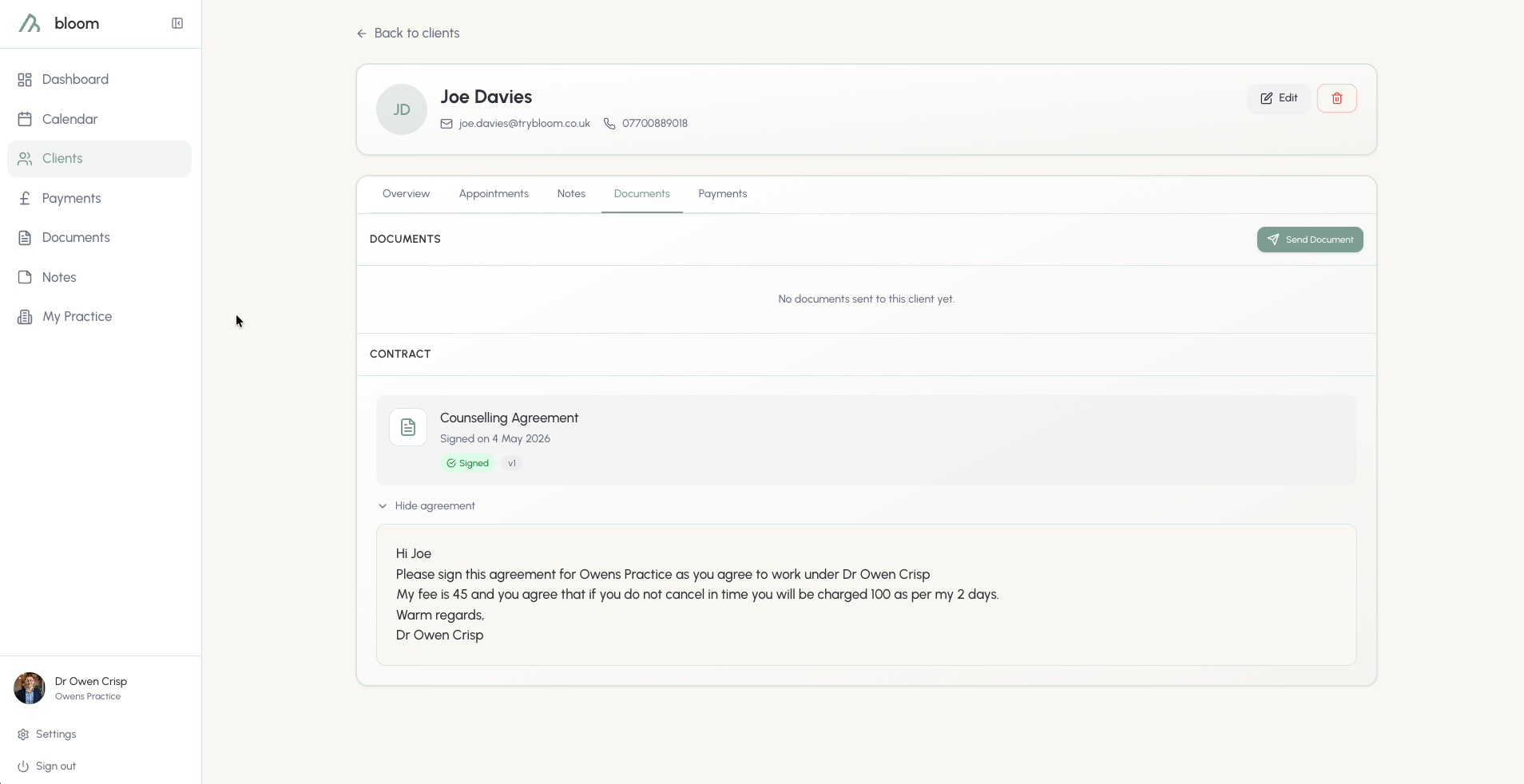
Client forms
Open the Forms tab to see forms sent to the client and internal entries you complete yourself.- Client forms shows sent forms and their responses. Click Send form to send another published form.
- Internal forms holds entries you complete for the client. Click Fill in a form to choose an internal form, answer its questions, and save. You can view, edit, or delete saved entries here.
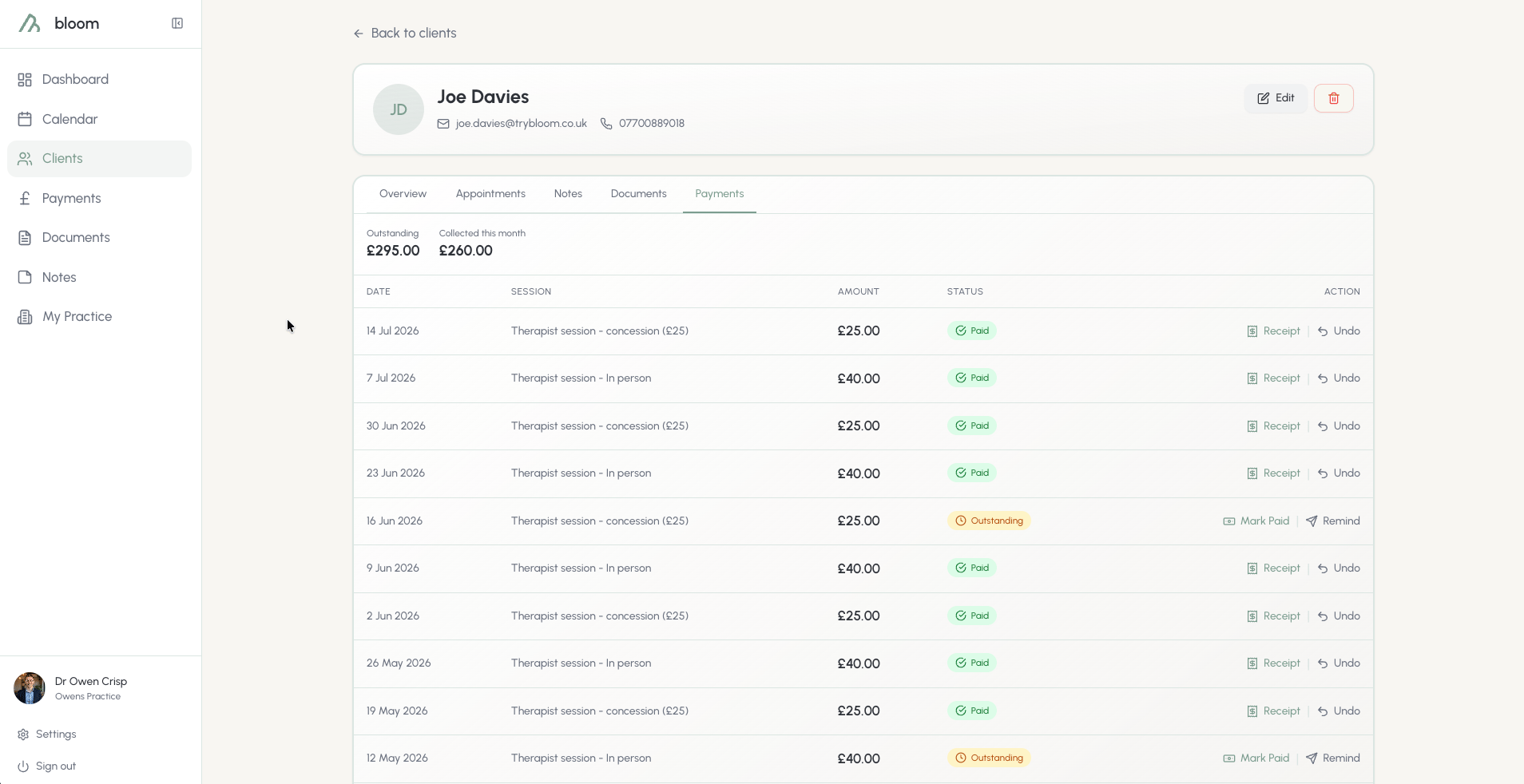
Client payments
The payments tab gives you an auditable trail of what is, and what might not yet be, paid. Although issued directly post-payment, receipts can also be resent directly from the client payment tab. If the client has billing details set, payment reminders and receipts go to their billing contact rather than the client. A Method column shows how each session was - or will be - paid: Card (Stripe), Cash, or Bank Transfer. For clients on a card or payment-link method you’ll also see Bloom’s collection at work here - Auto-charge scheduled, Payment link sent, Charge failed (with a one-click retry), and Refunded. The full list of statuses lives on the Payments page guide. If you decide not to charge for a session, click Waive on the outstanding payment. The session stops counting towards your outstanding total and payment reminders stop. You can optionally email the client to let them know nothing is due, and add a private note only you can see. Changed your mind? Click Reinstate to make the fee outstanding again.