Today’s sessions, outstanding payments and items needing attention.
Confirm your practice region
After subscribing, the practice owner confirms the practice’s region and client-payment currency on the dashboard:
United Kingdom · GBP (£)
Republic of Ireland · EUR (€)
Your practice region and client-payment currency cannot be changed after confirmation. Check your choice before selecting Confirm.
Everyone in your practice uses this currency for new client fees. Invited team members inherit the owner’s choice. If your region is already confirmed, you’ll go straight to your dashboard.Confirm this before setting your fees or connecting Stripe. You can still manage your subscription while setup is unfinished. Your Bloom subscription stays in GBP.
Your day at a glance
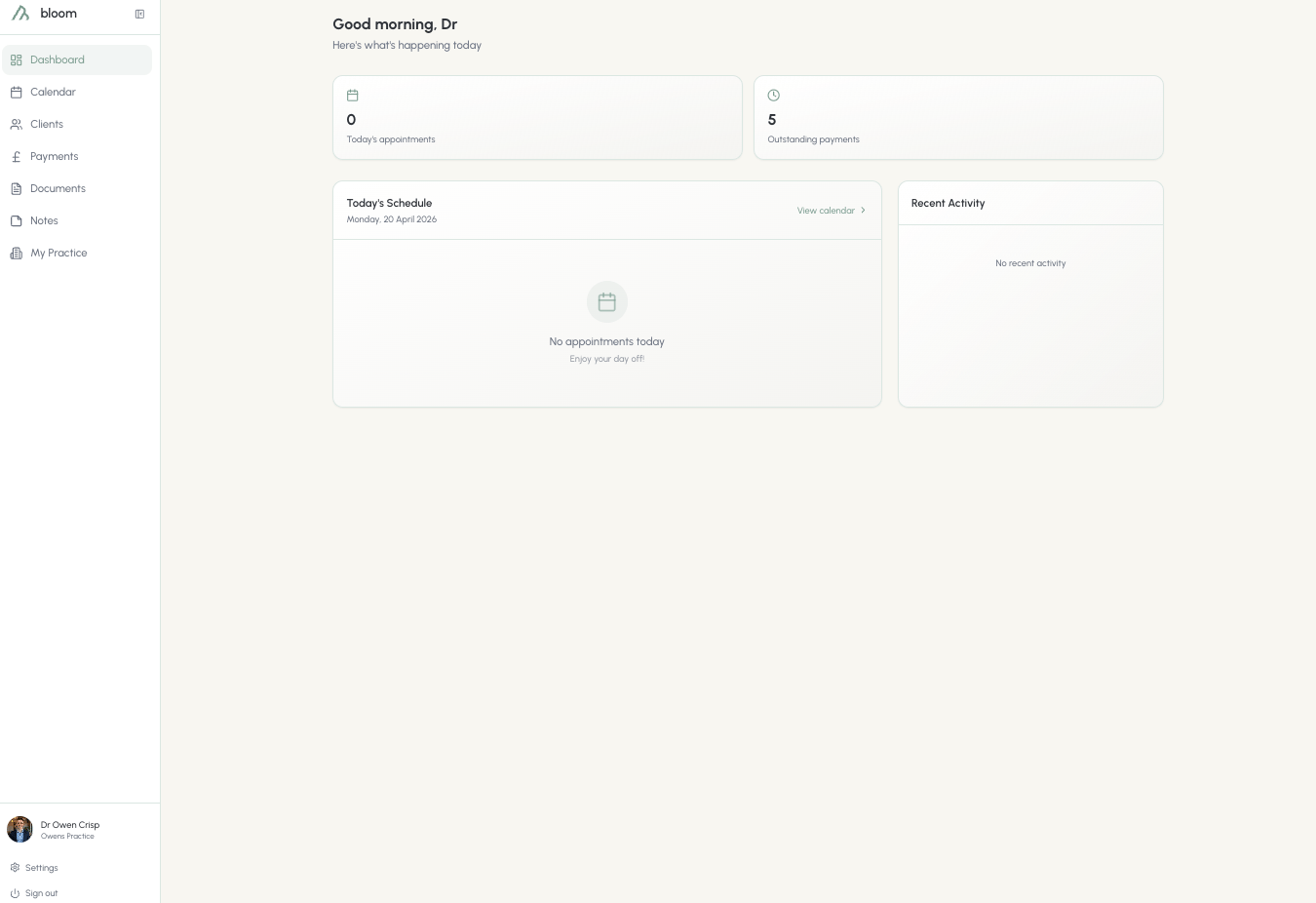
Your practice setup checklist and account notices appear at the top when available.The Today dashboard shows your next session and practice activity:
How many appointments you have today
Outstanding client payments, excluding sessions with waived fees
Today’s appointments by client and session type, with a link to the calendar
Recent client activity: payments, signed documents and completed onboarding
Anything that needs your attention - unsigned contracts, long-overdue payments, failed card charges, onboarding that could not start after a booking, and missing session notes
When more items need attention than fit in the overview, select View all to review the full list. A loading failure offers a retry; it does not mean there are no sessions or outstanding items.An unsigned agreement assigned through onboarding links to its exact journey. For a booking whose onboarding could not start, use View onboarding or Retry onboarding. See Track progress and recover problems.
Find your way around
The sidebar keeps Dashboard, Calendar, Clients, Notes and Payments within reach. Expand Practice tools for Onboarding, Documents, Forms, CPD and Insights. The submenu opens automatically when you visit one of its pages. Settings stays at the bottom.
Hiding client names
Use Hide client names above Settings in the practice section at the bottom of the sidebar when you want client names hidden in supported diary and list views. Supported personal details also stay hidden when you open a client record. Select Show client names to reveal them again. This changes the display in your current browser session; it does not change permissions or remove information.Use Practice tools → CPD in the sidebar to record your professional learning, reflect on its impact and review requirements for BACP, NCPS, UKCP and HCPC.
Missing session notes
Needs your attention reminds you to write a note one hour after a session ends if that session has no linked note. Cancelled sessions, no-shows and archived clients do not appear.When several sessions need notes for the same client, they appear in one collapsed group. Click View sessions to see each session, then Write note to create a note linked to it.Click Dismiss to permanently hide a session’s reminder. Dismiss all dismisses the sessions currently listed for that client. Later sessions can still appear with their own reminders.
{"docsConfig":{"theme":"mint","$schema":"https://mintlify.com/docs.json","name":"Bloom","description":"Guides for Bloom practice management software for private therapists in the UK and Ireland.","colors":{"primary":"#7C9A8E","light":"#9FBBAF","dark":"#3D534A"},"logo":{"light":"https://mintcdn.com/bloompracticemanagement/X-pZ6mWJ-UFko_t5/logo/light.svg?fit=max\u0026auto=format\u0026n=X-pZ6mWJ-UFko_t5\u0026q=85\u0026s=bbff9e1835156944bf4aea1ca3f10d64","dark":"https://mintcdn.com/bloompracticemanagement/X-pZ6mWJ-UFko_t5/logo/dark.svg?fit=max\u0026auto=format\u0026n=X-pZ6mWJ-UFko_t5\u0026q=85\u0026s=41afb9566233e873e0909a04fa3999b3"},"favicon":"https://mintcdn.com/bloompracticemanagement/X-pZ6mWJ-UFko_t5/favicon.svg?fit=max\u0026auto=format\u0026n=X-pZ6mWJ-UFko_t5\u0026q=85\u0026s=24df4a464393a37cf66c61c6fa2568b3","background":{"color":{"light":"#FCFAF6","dark":"#1A1F1C"}},"navbar":{"links":[{"href":"mailto:hello@trybloom.co.uk","label":"Support"}],"primary":{"type":"button","label":"Open Bloom","href":"https://www.trybloom.co.uk/dashboard"}},"footer":{"socials":{"website":"https://trybloom.co.uk"}},"fonts":{"family":"Urbanist"},"integrations":{"posthog":{"apiKey":"phc_WG3g95tnJWPWBaSuEjrbJlUKu1zokvRxdU4LLvlegNe","apiHost":"https://eu.i.posthog.com"}},"contextual":{"options":["copy","view","chatgpt","claude","perplexity"],"display":"header"},"styling":{"latex":false},"navigation":{"global":{"anchors":[{"anchor":"Bloom website","icon":"house","href":"https://trybloom.co.uk"},{"anchor":"Sign in","icon":"right-to-bracket","href":"https://www.trybloom.co.uk/dashboard"}]},"pages":[]}},"deployment":{"deploymentMetadataValue":{"subdomain":"bloompracticemanagement","hasAudioNarration":false,"actualSubdomain":"bloompracticemanagement","customDomains":["trybloom.co.uk"],"gitSource":{"type":"github","owner":"ryan-7777","repo":"bloom-public-docs","deployBranch":"main","contentDirectory":"","isPrivate":true,"mountPath":"","label":""},"feedback":{"thumbs":false},"entitlements":{"AI_CHAT":{"status":"DISABLED"}},"buildId":"6afddd30acef19c12af95ce2","clientVersion":"0.0.4286","searchFilterCounts":[{"language":"default","tag":"Knowledge Base","count":22},{"language":"default","tag":"Your practice","count":10},{"language":"default","tag":"Working with clients","count":7},{"language":"default","tag":"Payments","count":2},{"language":"default","tag":"Get started","count":1},{"language":"default","tag":"Multi-practitioner practices","count":1},{"language":"default","tag":"Integrations","count":1}]},"assistantConfig":{"enableAskAiButton":false,"enableStarterQuestions":false,"enableContextualStarterQuestions":false,"enableAskAiSearchBar":true},"basePath":"/docs","hasChatPermissions":false,"hasWebMcpPermissions":false,"toggles":[],"googleFontsInlined":true},"customCss":[]}
{"page":{"pagePath":"dashboard","slug":"/dashboard","pageMetadata":{"title":"Dashboard","description":"Today's sessions, outstanding payments and items needing attention.","icon":"house","href":"/dashboard"},"description":{"compiledSource":"\"use strict\";\nconst {jsx: _jsx} = arguments[0];\nconst {useMDXComponents: _provideComponents} = arguments[0];\nfunction _createMdxContent(props) {\n const _components = {\n p: \"p\",\n ..._provideComponents(),\n ...props.components\n };\n return _jsx(_components.p, {\n children: \"Today’s sessions, outstanding payments and items needing attention.\"\n });\n}\nfunction MDXContent(props = {}) {\n const {wrapper: MDXLayout} = {\n ..._provideComponents(),\n ...props.components\n };\n return MDXLayout ? _jsx(MDXLayout, {\n ...props,\n children: _jsx(_createMdxContent, {\n ...props\n })\n }) : _createMdxContent(props);\n}\nreturn {\n default: MDXContent\n};\n","frontmatter":{},"scope":{}},"pageType":"default","mdx":{"mdxSource":{"compiledSource":"\"use strict\";const{Fragment:_Fragment,jsx:_jsx,jsxs:_jsxs}=arguments[0];const{useMDXComponents:_provideComponents}=arguments[0];function _createMdxContent(props){const _components={a:`a`,li:`li`,p:`p`,strong:`strong`,ul:`ul`,..._provideComponents(),...props.components},{Frame,Heading,OptimizedImage,Warning}=_components;if(!Frame)_missingMdxReference(`Frame`,true);if(!Heading)_missingMdxReference(`Heading`,true);if(!OptimizedImage)_missingMdxReference(`OptimizedImage`,true);if(!Warning)_missingMdxReference(`Warning`,true);return _jsxs(_Fragment,{children:[_jsx(Heading,{level:`2`,id:`confirm-your-practice-region`,children:`Confirm your practice region`}),`\n`,_jsx(_components.p,{children:`After subscribing, the practice owner confirms the practice’s region and client-payment currency on the dashboard:`}),`\n`,_jsxs(_components.ul,{children:[`\n`,_jsx(_components.li,{children:_jsx(_components.strong,{children:`United Kingdom · GBP (£)`})}),`\n`,_jsx(_components.li,{children:_jsx(_components.strong,{children:`Republic of Ireland · EUR (€)`})}),`\n`]}),`\n`,_jsx(Warning,{children:_jsxs(_components.p,{children:[`Your practice region and client-payment currency cannot be changed after confirmation. Check your choice before selecting `,_jsx(_components.strong,{children:`Confirm`}),`.`]})}),`\n`,_jsx(_components.p,{children:`Everyone in your practice uses this currency for new client fees. Invited team members inherit the owner’s choice. If your region is already confirmed, you’ll go straight to your dashboard.`}),`\n`,_jsx(_components.p,{children:`Confirm this before setting your fees or connecting Stripe. You can still manage your subscription while setup is unfinished. Your Bloom subscription stays in GBP.`}),`\n`,_jsx(Heading,{level:`2`,id:`your-day-at-a-glance`,children:`Your day at a glance`}),`\n`,_jsx(_components.p,{children:`Your practice setup checklist and account notices appear at the top when available.`}),`\n`,_jsxs(_components.p,{children:[`The `,_jsx(_components.strong,{children:`Today`}),` dashboard shows your next session and practice activity:`]}),`\n`,_jsxs(_components.ul,{children:[`\n`,_jsx(_components.li,{children:`How many appointments you have today`}),`\n`,_jsx(_components.li,{children:`Outstanding client payments, excluding sessions with waived fees`}),`\n`,_jsx(_components.li,{children:`Today’s appointments by client and session type, with a link to the calendar`}),`\n`,_jsx(_components.li,{children:`Recent client activity: payments, signed documents and completed onboarding`}),`\n`,_jsx(_components.li,{children:`Anything that needs your attention - unsigned contracts, long-overdue payments, failed card charges, onboarding that could not start after a booking, and missing session notes`}),`\n`]}),`\n`,_jsxs(_components.p,{children:[`When more items need attention than fit in the overview, select `,_jsx(_components.strong,{children:`View all`}),` to review the full list. A loading failure offers a retry; it does not mean there are no sessions or outstanding items.`]}),`\n`,_jsxs(_components.p,{children:[`An unsigned agreement assigned through onboarding links to its exact journey. For a booking whose onboarding could not start, use `,_jsx(_components.strong,{children:`View onboarding`}),` or `,_jsx(_components.strong,{children:`Retry onboarding`}),`. See `,_jsx(_components.a,{href:`/onboarding#track-progress-and-recover-problems`,children:`Track progress and recover problems`}),`.`]}),`\n`,_jsx(Heading,{level:`2`,id:`find-your-way-around`,children:`Find your way around`}),`\n`,_jsxs(_components.p,{children:[`The sidebar keeps `,_jsx(_components.strong,{children:`Dashboard`}),`, `,_jsx(_components.strong,{children:`Calendar`}),`, `,_jsx(_components.strong,{children:`Clients`}),`, `,_jsx(_components.strong,{children:`Notes`}),` and `,_jsx(_components.strong,{children:`Payments`}),` within reach. Expand `,_jsx(_components.strong,{children:`Practice tools`}),` for `,_jsx(_components.strong,{children:`Onboarding`}),`, `,_jsx(_components.strong,{children:`Documents`}),`, `,_jsx(_components.strong,{children:`Forms`}),`, `,_jsx(_components.strong,{children:`CPD`}),` and `,_jsx(_components.strong,{children:`Insights`}),`. The submenu opens automatically when you visit one of its pages. `,_jsx(_components.strong,{children:`Settings`}),` stays at the bottom.`]}),`\n`,_jsx(Heading,{level:`3`,id:`hiding-client-names`,children:`Hiding client names`}),`\n`,_jsxs(_components.p,{children:[`Use `,_jsx(_components.strong,{children:`Hide client names`}),` above `,_jsx(_components.strong,{children:`Settings`}),` in the practice section at the bottom of the sidebar when you want client names hidden in supported diary and list views. Supported personal details also stay hidden when you open a client record. Select `,_jsx(_components.strong,{children:`Show client names`}),` to reveal them again. This changes the display in your current browser session; it does not change permissions or remove information.`]}),`\n`,_jsxs(_components.p,{children:[`Use `,_jsx(_components.strong,{children:`Practice tools`}),` → `,_jsx(_components.strong,{children:`CPD`}),` in the sidebar to `,_jsx(_components.a,{href:`/cpd`,children:`record your professional learning`}),`, reflect on its impact and review requirements for BACP, NCPS, UKCP and HCPC.`]}),`\n`,_jsx(Frame,{children:_jsx(OptimizedImage,{src:`https://mintcdn.com/bloompracticemanagement/X-pZ6mWJ-UFko_t5/images/dashboard/dashboard.png?fit=max\u0026auto=format\u0026n=X-pZ6mWJ-UFko_t5\u0026q=85\u0026s=b950b44938da1632a5bf6e34726f372d`,alt:`Bloom dashboard`,\"data-og-width\":`1350`,width:`1350`,\"data-og-height\":`926`,height:`926`,\"data-path\":`images/dashboard/dashboard.png`,\"data-optimize\":`true`,\"data-opv\":`3`,srcset:`https://mintcdn.com/bloompracticemanagement/X-pZ6mWJ-UFko_t5/images/dashboard/dashboard.png?w=280\u0026fit=max\u0026auto=format\u0026n=X-pZ6mWJ-UFko_t5\u0026q=85\u0026s=f93e24cb1cd9157077a0758b6b243e09 280w, https://mintcdn.com/bloompracticemanagement/X-pZ6mWJ-UFko_t5/images/dashboard/dashboard.png?w=560\u0026fit=max\u0026auto=format\u0026n=X-pZ6mWJ-UFko_t5\u0026q=85\u0026s=3a375a40f43e24df939cb440ad7d7a20 560w, https://mintcdn.com/bloompracticemanagement/X-pZ6mWJ-UFko_t5/images/dashboard/dashboard.png?w=840\u0026fit=max\u0026auto=format\u0026n=X-pZ6mWJ-UFko_t5\u0026q=85\u0026s=e651eb7e6f1a84b73c09d2ee46ef1d9e 840w, https://mintcdn.com/bloompracticemanagement/X-pZ6mWJ-UFko_t5/images/dashboard/dashboard.png?w=1100\u0026fit=max\u0026auto=format\u0026n=X-pZ6mWJ-UFko_t5\u0026q=85\u0026s=6fbfb29b32d0ee7d2348afd85e2a9709 1100w, https://mintcdn.com/bloompracticemanagement/X-pZ6mWJ-UFko_t5/images/dashboard/dashboard.png?w=1650\u0026fit=max\u0026auto=format\u0026n=X-pZ6mWJ-UFko_t5\u0026q=85\u0026s=38602e9910d0e56fcb9e9930052da17c 1650w, https://mintcdn.com/bloompracticemanagement/X-pZ6mWJ-UFko_t5/images/dashboard/dashboard.png?w=2500\u0026fit=max\u0026auto=format\u0026n=X-pZ6mWJ-UFko_t5\u0026q=85\u0026s=4357f905fdcd1e3dacfbed45caf98e4f 2500w`})}),`\n`,_jsx(Heading,{level:`2`,id:`missing-session-notes`,children:`Missing session notes`}),`\n`,_jsxs(_components.p,{children:[_jsx(_components.strong,{children:`Needs your attention`}),` reminds you to write a note one hour after a session ends if that session has no linked note. Cancelled sessions, no-shows and archived clients do not appear.`]}),`\n`,_jsxs(_components.p,{children:[`When several sessions need notes for the same client, they appear in one collapsed group. Click `,_jsx(_components.strong,{children:`View sessions`}),` to see each session, then `,_jsx(_components.strong,{children:`Write note`}),` to create a note linked to it.`]}),`\n`,_jsxs(_components.p,{children:[`Click `,_jsx(_components.strong,{children:`Dismiss`}),` to permanently hide a session’s reminder. `,_jsx(_components.strong,{children:`Dismiss all`}),` dismisses the sessions currently listed for that client. Later sessions can still appear with their own reminders.`]})]})}function MDXContent(props={}){const{wrapper:MDXLayout}={..._provideComponents(),...props.components};return MDXLayout?_jsx(MDXLayout,{...props,children:_jsx(_createMdxContent,{...props})}):_createMdxContent(props)}return{default:MDXContent};function _missingMdxReference(id,component){throw new Error(`Expected `+(component?`component`:`object`)+\" `\"+id+\"` to be defined: you likely forgot to import, pass, or provide it.\")}","frontmatter":{},"scope":{"config":{},"pageMetadata":{"title":"Dashboard","description":"Today's sessions, outstanding payments and items needing attention.","icon":"house","href":"/dashboard"}}},"mdxSourceWithNoJs":null},"mdxExtracts":{"tableOfContents":[{"title":"Confirm your practice region","slug":"confirm-your-practice-region","depth":2,"children":[]},{"title":"Your day at a glance","slug":"your-day-at-a-glance","depth":2,"children":[]},{"title":"Find your way around","slug":"find-your-way-around","depth":2,"children":[{"title":"Hiding client names","slug":"hiding-client-names","depth":3,"children":[]}]},{"title":"Missing session notes","slug":"missing-session-notes","depth":2,"children":[]}],"codeExamples":{}},"jsLinks":[],"subdomain":"bloompracticemanagement","siteName":"Bloom","title":"Dashboard - Bloom","navMaps":{"firstHrefInVersion":{},"firstHrefInLanguage":{}},"lastModified":"2026-11-17T22:10:36.952Z","originalFileLocation":"dashboard.mdx"},"headHtml":"\u003cscript data-mint-head>(function(){var d=document.documentElement,p=null;if(!p){try{p=localStorage.getItem(\"isDarkMode\")}catch(e){}if(p==='true')p='dark';else if(p==='false')p='light';if(p!=='light'\u0026\u0026p!=='dark'\u0026\u0026p!=='system')p=\"system\"}var r=p==='system'?(matchMedia(\"(prefers-color-scheme: dark)\").matches?'dark':'light'):p;d.classList.remove(r==='dark'?'light':'dark');d.classList.add(r);d.setAttribute(\"data-theme-preference\",p)})();\u003c/script>\u003cmeta data-mint-head name=\"description\" content=\"Today\u0026#x27;s sessions, outstanding payments and items needing attention.\">\u003cmeta data-mint-head name=\"application-name\" content=\"Bloom\">\u003cmeta data-mint-head name=\"generator\" content=\"Mintlify\">\u003clink data-mint-head rel=\"icon\" type=\"image/png\" sizes=\"192x192\" href=\"/docs/mintlify-assets/_mintlify/favicons/bloompracticemanagement/RA5m0iDYqAHW0_Z0/_generated/favicon/android-chrome-192x192.png\" media=\"(prefers-color-scheme: light)\">\u003clink data-mint-head rel=\"apple-touch-icon\" type=\"image/png\" sizes=\"180x180\" href=\"/docs/mintlify-assets/_mintlify/favicons/bloompracticemanagement/RA5m0iDYqAHW0_Z0/_generated/favicon/apple-touch-icon.png\">\u003clink data-mint-head rel=\"icon\" type=\"image/png\" sizes=\"16x16\" href=\"/docs/mintlify-assets/_mintlify/favicons/bloompracticemanagement/RA5m0iDYqAHW0_Z0/_generated/favicon/favicon-16x16.png\" media=\"(prefers-color-scheme: light)\">\u003clink data-mint-head rel=\"icon\" type=\"image/png\" sizes=\"32x32\" href=\"/docs/mintlify-assets/_mintlify/favicons/bloompracticemanagement/RA5m0iDYqAHW0_Z0/_generated/favicon/favicon-32x32.png\" media=\"(prefers-color-scheme: light)\">\u003clink data-mint-head rel=\"shortcut icon\" type=\"image/x-icon\" href=\"/docs/mintlify-assets/_mintlify/favicons/bloompracticemanagement/RA5m0iDYqAHW0_Z0/_generated/favicon/favicon.ico\" media=\"(prefers-color-scheme: light)\">\u003clink data-mint-head rel=\"icon\" type=\"image/png\" sizes=\"192x192\" href=\"/docs/mintlify-assets/_mintlify/favicons/bloompracticemanagement/RA5m0iDYqAHW0_Z0/_generated/favicon-dark/android-chrome-192x192.png\" media=\"(prefers-color-scheme: dark)\">\u003clink data-mint-head rel=\"icon\" type=\"image/png\" sizes=\"16x16\" href=\"/docs/mintlify-assets/_mintlify/favicons/bloompracticemanagement/RA5m0iDYqAHW0_Z0/_generated/favicon-dark/favicon-16x16.png\" media=\"(prefers-color-scheme: dark)\">\u003clink data-mint-head rel=\"icon\" type=\"image/png\" sizes=\"32x32\" href=\"/docs/mintlify-assets/_mintlify/favicons/bloompracticemanagement/RA5m0iDYqAHW0_Z0/_generated/favicon-dark/favicon-32x32.png\" media=\"(prefers-color-scheme: dark)\">\u003clink data-mint-head rel=\"shortcut icon\" type=\"image/x-icon\" href=\"/docs/mintlify-assets/_mintlify/favicons/bloompracticemanagement/RA5m0iDYqAHW0_Z0/_generated/favicon-dark/favicon.ico\" media=\"(prefers-color-scheme: dark)\">\u003cmeta data-mint-head property=\"og:title\" content=\"Dashboard - Bloom\">\u003cmeta data-mint-head property=\"og:description\" content=\"Today\u0026#x27;s sessions, outstanding payments and items needing attention.\">\u003cmeta data-mint-head property=\"og:site_name\" content=\"Bloom\">\u003cmeta data-mint-head property=\"og:url\" content=\"https://trybloom.co.uk/docs/dashboard\">\u003cmeta data-mint-head property=\"og:type\" content=\"website\">\u003cmeta data-mint-head property=\"og:image\" content=\"https://bloompracticemanagement.mintlify.site/docs/_mintlify/api/og/v2?division=Your+practice\u0026amp;title=Dashboard\u0026amp;description=Today%27s+sessions%2C+outstanding+payments+and+items+needing+attention.\u0026amp;theme=5d1d789647aab8fb463965cc\u0026amp;signature=8e748f5c94352ca528ccded0adf06013a8b8e28a7ab00dd0394718a966a6e53b\">\u003cmeta data-mint-head property=\"og:image:width\" content=\"1200\">\u003cmeta data-mint-head property=\"og:image:height\" content=\"630\">\u003cmeta data-mint-head name=\"twitter:card\" content=\"summary_large_image\">\u003cmeta data-mint-head name=\"twitter:title\" content=\"Dashboard - Bloom\">\u003cmeta data-mint-head name=\"twitter:description\" content=\"Today\u0026#x27;s sessions, outstanding payments and items needing attention.\">\u003cmeta data-mint-head name=\"twitter:image\" content=\"https://bloompracticemanagement.mintlify.site/docs/_mintlify/api/og/v2?division=Your+practice\u0026amp;title=Dashboard\u0026amp;description=Today%27s+sessions%2C+outstanding+payments+and+items+needing+attention.\u0026amp;theme=5d1d789647aab8fb463965cc\u0026amp;signature=8e748f5c94352ca528ccded0adf06013a8b8e28a7ab00dd0394718a966a6e53b\">\u003cmeta data-mint-head name=\"twitter:image:width\" content=\"1200\">\u003cmeta data-mint-head name=\"twitter:image:height\" content=\"630\">\u003cmeta data-mint-head name=\"msapplication-config\" content=\"/docs/mintlify-assets/_mintlify/favicons/bloompracticemanagement/RA5m0iDYqAHW0_Z0/_generated/favicon/browserconfig.xml\">\u003cmeta data-mint-head name=\"apple-mobile-web-app-title\" content=\"Bloom\">\u003cmeta data-mint-head name=\"msapplication-TileColor\" content=\"#7C9A8E\">\u003clink data-mint-head rel=\"canonical\" href=\"https://trybloom.co.uk/docs/dashboard\">\u003clink data-mint-head rel=\"alternate\" type=\"application/xml\" href=\"/docs/sitemap.xml\">\u003clink data-mint-head rel=\"alternate\" type=\"text/markdown\" href=\"/docs/dashboard.md\">\u003cscript data-mint-head type=\"application/ld+json\">{\"@context\":\"https://schema.org\",\"@graph\":[{\"@type\":\"Organization\",\"@id\":\"https://trybloom.co.uk/#organization\",\"name\":\"Bloom\",\"url\":\"https://trybloom.co.uk\",\"logo\":{\"@type\":\"ImageObject\",\"url\":\"https://mintcdn.com/bloompracticemanagement/X-pZ6mWJ-UFko_t5/logo/light.svg?fit=max\u0026auto=format\u0026n=X-pZ6mWJ-UFko_t5\u0026q=85\u0026s=bbff9e1835156944bf4aea1ca3f10d64\"}},{\"@type\":\"WebSite\",\"@id\":\"https://trybloom.co.uk/docs#website\",\"name\":\"Bloom\",\"url\":\"https://trybloom.co.uk/docs\",\"publisher\":{\"@id\":\"https://trybloom.co.uk/#organization\"}},{\"@type\":\"WebPage\",\"@id\":\"https://trybloom.co.uk/docs/dashboard#webpage\",\"url\":\"https://trybloom.co.uk/docs/dashboard\",\"name\":\"Dashboard\",\"description\":\"Today's sessions, outstanding payments and items needing attention.\",\"dateModified\":\"2026-11-17T22:10:36.952Z\",\"isPartOf\":{\"@id\":\"https://trybloom.co.uk/docs#website\"},\"breadcrumb\":{\"@id\":\"https://trybloom.co.uk/docs/dashboard#breadcrumb\"}},{\"@type\":\"BreadcrumbList\",\"@id\":\"https://trybloom.co.uk/docs/dashboard#breadcrumb\",\"itemListElement\":[{\"@type\":\"ListItem\",\"position\":1,\"name\":\"Bloom\",\"item\":\"https://trybloom.co.uk/docs\"},{\"@type\":\"ListItem\",\"position\":2,\"name\":\"Dashboard\",\"item\":\"https://trybloom.co.uk/docs/dashboard\"}]},{\"@type\":[\"Article\",\"TechArticle\"],\"@id\":\"https://trybloom.co.uk/docs/dashboard#article\",\"headline\":\"Dashboard\",\"name\":\"Dashboard\",\"description\":\"Today's sessions, outstanding payments and items needing attention.\",\"url\":\"https://trybloom.co.uk/docs/dashboard\",\"mainEntityOfPage\":{\"@id\":\"https://trybloom.co.uk/docs/dashboard#webpage\"},\"dateModified\":\"2026-11-17T22:10:36.952Z\",\"publisher\":{\"@id\":\"https://trybloom.co.uk/#organization\"},\"isPartOf\":{\"@id\":\"https://trybloom.co.uk/docs#website\"}}]}\u003c/script>\u003cscript data-mint-head type=\"application/ld+json\">{\"@context\":\"https://schema.org\",\"@type\":\"WebSite\",\"name\":\"Bloom\",\"publisher\":{\"@type\":\"Organization\",\"name\":\"Bloom\"},\"provider\":{\"@type\":\"Organization\",\"name\":\"Mintlify\",\"url\":\"https://mintlify.com\"}}\u003c/script>","agentPointerHref":"/docs/dashboard.md","siteName":"Bloom","nav":{"global":{"anchors":[{"anchor":"Bloom website","icon":"house","href":"https://trybloom.co.uk"},{"anchor":"Sign in","icon":"right-to-bracket","href":"https://www.trybloom.co.uk/dashboard"}]},"tabs":[{"tab":"Knowledge Base","groups":[{"group":"Get started","pages":[{"title":"Welcome to Bloom","icon":"seedling","description":null,"href":""}]},{"group":"Your practice","pages":[{"title":"Dashboard","icon":"house","href":"/dashboard"},{"title":"CPD tracker","description":"Record professional learning, reflect on your practice and prepare your CPD records.","icon":"graduation-cap","href":"/cpd"},{"title":"Settings","icon":"sliders","href":"/settings"},{"title":"Audit log","icon":"clock-rotate-left","href":"/audit-log"},{"title":"Two-factor authentication","icon":"shield-check","href":"/two-factor-authentication"},{"title":"Clinical will","icon":"shield-heart","href":"/clinical-will"},{"title":"For clinical executors","icon":"user-check","href":"/clinical-will-executor"},{"title":"Calendar","icon":"calendar","href":"/calendar"},{"title":"Sync your diary with your calendar app","icon":"arrows-rotate","href":"/sync-your-diary"},{"title":"Insights","icon":"chart-column","href":"/insights"}]},{"group":"Working with clients","pages":[{"title":"Online booking","icon":"calendar-check","href":"/online-booking"},{"title":"Clients","icon":"users","href":"/clients"},{"title":"Couples therapy","icon":"users","href":"/couples-therapy"},{"title":"Onboarding","icon":"route","href":"/onboarding"},{"title":"Notes","icon":"pen-line","href":"/notes"},{"title":"Documents","icon":"file-lines","href":"/documents"},{"title":"Forms","icon":"clipboard-list","href":"/forms"}]},{"group":"Multi-practitioner practices","pages":[{"title":"Practice booking link","icon":"users","href":"/practice-booking-link"}]},{"group":"Payments","pages":[{"title":"Payments","icon":"coins","href":"/payments"},{"title":"Card payments","icon":"credit-card","href":"/card-payments"}]},{"group":"Integrations","pages":[{"title":"Zoom","icon":"video","href":"/zoom"}]}]}]},"basePath":"","title":"Dashboard - Bloom","deploymentId":"dpl_3DZuqjnfdjREuPshghHhyiLeMG3U","buildId":"dpl_3DZuqjnfdjREuPshghHhyiLeMG3U","dynamics":["07c022d89b","a74be98ba7"],"chunks":["Frame-9igxfQ2B.js","DynamicMarkdown-DYGX_69W.js","zoom-image-lightbox-BwrdYPf2.js","lightbox-handle-r17bVUz3.js"]}